
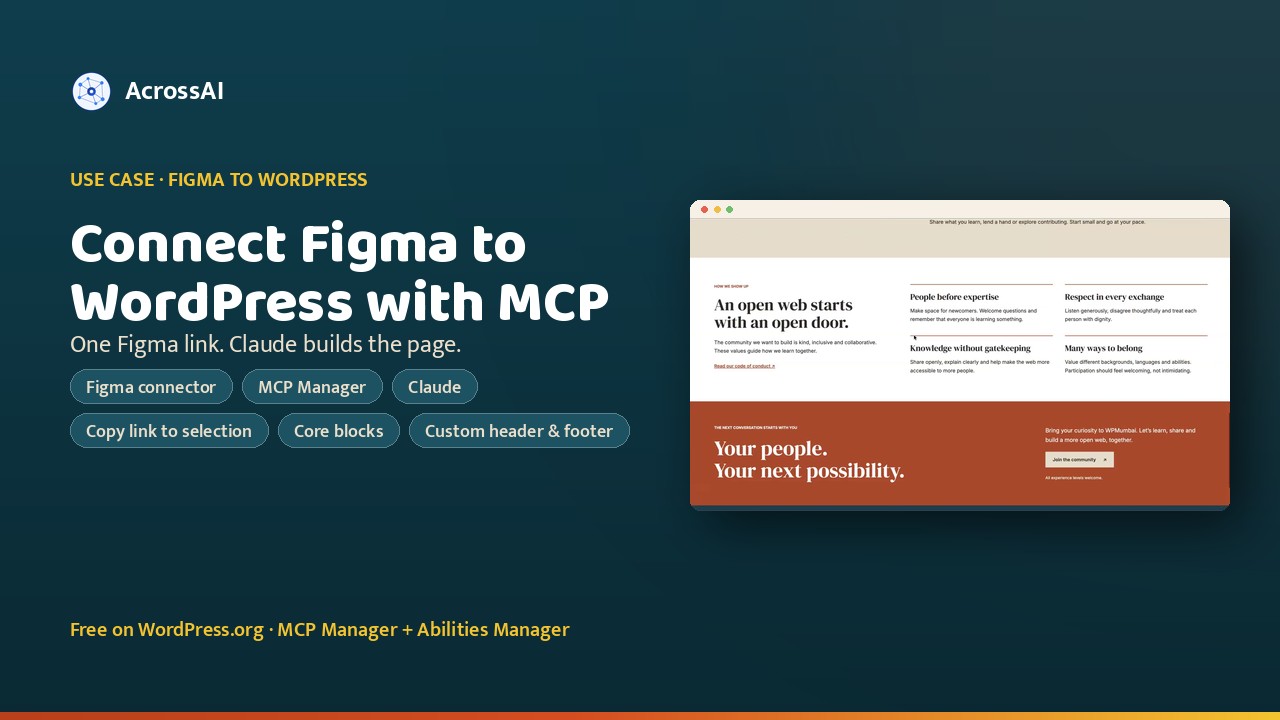
Can you connect Figma to WordPress without a plugin that converts designs? Yes. Put both in the same Claude chat: Figma through its MCP connector, WordPress through the free MCP Manager plugin. Paste a Figma link, and Claude rebuilds the frame as a real WordPress page made of blocks.
This walkthrough comes from a demo build I made for a WordPress Mumbai meetup talk. I designed an About page in Figma, gave Claude one link, and it built the page on the live site, with its own header and footer. The setup takes a few minutes, and it all runs on MCP Manager and Abilities Manager, both free on WordPress.org.
2
MCP connectors in one chat: Figma and WordPress
1
Figma link pasted, from Copy link to selection
6
Page sections rebuilt in core blocks
0
Page builders or design-import plugins
How the Figma to WordPress connection works
There is no direct pipe between Figma and WordPress. Claude sits in the middle and talks to both over MCP, the open standard AI assistants use to reach other tools. Each side does what it is good at.
01
Reads the design
Figma connector
Hands Claude the selected frame: its layout, spacing, colors, type and a screenshot to match against. It can also export artwork, like an illustration, as SVG.
02
Translates
Claude
Turns the frame into WordPress blocks and template parts, using your theme’s colors and spacing presets wherever they match the design.
03
Writes to the site
MCP Manager
Connects Claude to WordPress as a real admin user, so it can create template files, update pages and assign templates through named abilities.
Set it up in four steps
You do the first two once. After that, every new Figma design is just steps three and four.
01 · WordPress
Connect your site to Claude
Install MCP Manager and Abilities Manager, run Quick Connect, and add the site as a custom connector in Claude. Approve it on the site as an admin, then ask “Can you access my site?” to check.
02 · Figma
Connect Figma to Claude
Add the Figma connector in Claude and sign in with your Figma account. Claude can now read any file your account can open.
03 · Design system
Give Figma your theme first
Ask Claude to turn your theme.json into design tokens for Figma. Your designer then works with the site’s real colors, fonts and spacing, so nothing gets lost on the way back.
04 · Build
Copy link to selection, paste, done
In Figma, right-click the frame and choose Copy link to selection. Paste that link into Claude with what you want built, and it builds the page.
The two prompts behind the demo
Prompt 1 · Before designing
Get me the global style sheet from theme.json that I can pass to Figma and create a design from there. Add a note that we are building this with a block theme.
Claude produced a design-tokens file in the standard DTCG format, which Figma’s variable import and the Tokens Studio plugin both read, plus a short brief for the designer. The token names match the slugs in theme.json, and the brief spells out the block-theme rules: stick to the theme’s presets, design for three screen widths, and avoid effects blocks cannot produce, like overlapping layers.
Prompt 2 · After designing
Fetch the About us design from Figma and add it to our site with the same look and feel and proper margins. Create a custom header and footer for the About page only.
Claude first asked for the frame link, because the Figma connector reads a specific frame, not a whole account. Once it had the link, it read the design, rebuilt it, and assigned it to the About page alone. The rest of the site kept its normal header and footer.
What Claude built from one Figma frame
Templates
About-only header and footer
Two new template parts and a page template that uses them, applied to the About page only.
Content
Six sections in core blocks
Hero, story, welcome cards, learn and share, steps and values, each rebuilt with Columns, Groups, Headings and Buttons.
Artwork
Two illustrations exported as SVG
The Gateway of India motif and the yellow sun were exported straight from the Figma frame and placed inline, so they stay sharp at every size.
Fonts
Design fonts added to the theme
DM Serif Display and Inter, the two fonts in the Figma frame, were added to theme.json, so the editor and the page show the same type.
The one fix it needed
What I saw
The header and footer ran edge to edge, but every section in between sat in a narrow column.
I sent Claude a screenshot of the page next to the Figma frame and said the content was not full width.
What Claude found
The page template wrapped the content in the theme’s 720px reading column.
It switched the About template to full width, then found the same narrow column in the homepage template and fixed that too. One screenshot, one sentence.
Figma handoff vs. Figma over MCP
The usual handoff
Export assets, measure spacing, rebuild each section by hand, then compare side by side.
Or install a design-import plugin and clean up whatever markup it produces.
With MCP Manager + Claude
Paste one Figma link. Claude reads the frame and builds it in your theme’s own blocks.
Changes are another message: send a screenshot or describe what is off, and Claude edits the same page.
The abilities Claude used
Here is every call from the build, in order. Claude used two Figma connector tools to read the design, then five AcrossAI abilities, across nine calls, to build it on WordPress and check its own work.
| Tool | Where | What it did |
|---|---|---|
get_design_context | Figma connector | Read the About frame (node 2:973): structure, spacing, colors, type and a screenshot to match against. |
use_figma × 2 | Figma connector | Exported two pieces of artwork from the frame as SVG, read-only: the Gateway of India motif and the Kaali-Peeli sun. |
file-manager/edit-file | MCP Manager | Added the design’s fonts (DM Serif Display and Inter) and the About styles to theme.json, and registered the new template parts. |
file-manager/create-file × 3 | MCP Manager | Created the About-only header and footer template parts and the About page template that uses them. |
content/update-post × 2 | MCP Manager | Wrote the six sections into the About page, then assigned the new template to that page explicitly. |
blocks/find-template-part-usage | MCP Manager | Checked that the new header is used only by the About template, so the rest of the site stays untouched. |
file-manager/edit-file × 2 | MCP Manager | The fix: made the About template full width, then fixed the same narrow column in the homepage template. |
blocks/list-block-templates | MCP Manager | Re-read the theme’s templates to confirm both fixed templates were in place. |
Tip: design with your theme, not around it
The token file is what makes this fast. When the Figma frame uses the same colors, fonts and spacing as theme.json, Claude can map almost every value to a theme preset instead of hard-coding it, and the page stays editable in the block editor afterwards.
Who this is for
Designers
Ship what you designed
See your Figma frame live on the site without waiting for a developer to rebuild it.
Agencies
Faster client sign-off
Move from an approved Figma design to a working WordPress page in the same meeting.
Developers
Skip the pixel-pushing
Let Claude do the first build in blocks, then review and refine instead of starting from zero.
Connect Figma to your WordPress site
Install MCP Manager, connect Claude and Figma, and paste your first frame link.
Frequently asked questions
Can I connect Figma to WordPress with AI?
Yes. Connect Figma to Claude with the Figma connector, and connect your WordPress site to Claude with the free MCP Manager plugin. Claude then reads a Figma frame and builds it as a WordPress page in blocks.
Do I need a Figma-to-WordPress plugin?
No. The design never passes through an import plugin. Claude reads the frame through Figma’s connector and writes blocks and template files through MCP Manager’s abilities.
Which Figma link should I give Claude?
Right-click the frame in Figma and choose Copy link to selection. That link points to one frame, which is what the Figma connector needs.
Will the page match my theme?
It matches best when the design uses your theme’s tokens. Ask Claude to export theme.json as design tokens before you start designing, and most values map straight to your theme’s presets.
Can it give one page its own header and footer?
Yes. In the demo, Claude created an About-only header and footer as separate template parts and applied them to that page alone, leaving the rest of the site unchanged.
How much does it cost?
MCP Manager and Abilities Manager are free on WordPress.org. You need a Figma account and an AI assistant that supports MCP, such as Claude.
From Figma frame to WordPress page in one chat
MCP Manager connects Claude to your site; the Figma connector connects it to your designs. Both are a few clicks to set up.
Watch the demo: Figma to WordPress with MCP Manager and Claude · Learn more: the full 12-video WordPress Mumbai build · every plugin integration