
Every product builder has a moment they both hope for and dread: someone respected in the community installs your plugin cold, live on stream, with no docs and no hand-holding. That happened to us last month. Jonathan Bossenger put AcrossAI MCP Manager head-to-head with two other WordPress AI plugins, WP Vibe and Albert, in his WordPress AI Plugin Showdown.
Key takeaways
- MCP Manager won — it was the only plugin of the three that Jonathan got working end to end on a local site.
- WP Vibe routes your site through a hosted relay, and Albert couldn’t connect locally.
- His biggest idea — facade tools — is now how MCP Manager works. Here’s everything that has shipped since his stream.
MCP Manager was the only one he got working end to end, and he left it a five-star review. But the most valuable part of the hour wasn’t the verdict. It was the running commentary: what he liked, what slowed him down, and one architectural suggestion that has already shaped the plugin.
Who is Jonathan Bossenger?
About the reviewer
If you build on WordPress, you’ve probably learned something from Jonathan. He’s a developer advocate and educator from Cape Town, South Africa, who works at Automattic as a WordPress developer advocate creating developer-focused educational content. His work spans WordPress.com, WordPress VIP and WordPress.org, with a growing focus on AI integration.
He came to advocacy after years of shipping code. Before Automattic he was a Senior Technical Writer at Delicious Brains, and before that he led development at Castos, growing the team from 2 to 12 behind a podcast hosting platform serving more than 20,000 podcasters. He also worked as an Expert Developer on Codeable and spent over a decade across PHP stacks including Laravel, CakePHP, Drupal and Moodle. That plugin-business background shows in the video — at one point he talks candidly about what he learned running free plugins between 2016 and 2020.
He has spoken at WordCamp Europe, WordCamp US, multiple WordCamp Cape Town and Johannesburg events, PHP South Africa and DevConf, and recently ran a WordCamp Belgrade 2026 workshop on building your first AI-powered WordPress plugin. He writes for the WordPress Developer Blog, WP Tavern and Smashing Magazine, and curates the weekly Dev & Deploy newsletter.
Follow Jonathan: Website · YouTube · GitHub · LinkedIn · Twitch · X · Bluesky
The ground rules
Viewers had suggested three plugins, and Jonathan tested them with what he called a “quote unquote scientific method” on a local WordPress Studio install, using a real draft post. Each plugin had to pass three tests:
01
No docs needed
How far can you get setting it up without reading any documentation?
02
Works on a local site
Can an AI client connect and work on a real post — say, generating a title and featured image?
03
Where does data go?
He pointed a local Claude agent at each plugin’s code to see what gets sent back to its vendor.
That last test matters. An AI connector touches your content, your users and often your database, so knowing where that traffic goes isn’t optional.
The scorecard at a glance
| Plugin | Local site | Where your data goes | Result |
|---|---|---|---|
| WP Vibe | Required signing in to an external service | Through WP Vibe’s hosted server | Not for him |
| Albert | Couldn’t connect | — (never connected) | Blocked locally |
| MCP Manager | Worked, after a local SSL fix | Directly between your site and your AI client | Winner |
WP Vibe: a relay he didn’t want
Verdict: not for him
WP Vibe (wpvibe.ai) was the most established of the three, with plenty of installs and strong reviews. Setup asks you to add a remote MCP server URL to your AI client, and that URL points at WP Vibe’s service, not at your own site.
After working through a Claude account issue unrelated to the plugin, Jonathan connected the custom connector and was asked to sign in to the external service. The code review found that the plugin itself pushes no site data. Instead, WP Vibe’s hosted server holds an application password and calls back into the site’s REST routes. So your AI client talks to their server, and their server talks to your site.
His verdict: that architecture isn’t for him. He wants AI working directly with his own site — otherwise, as he put it, what’s the point of installing the plugin? He called it the shortest review he’d ever done.
AcrossAI MCP Manager: the one that worked
Verdict: winner
MCP Manager was at version 0.3.0 at the time, with about ten users and no reviews. He was pleased it builds on the official MCP Adapter, called the range of connection options “very cool” (a paid one-click OAuth connector, an NPM route, and a manual config with the application password generated inside the wizard), and said the dashboard “looks like it belongs to a WordPress site.” His summary: “a very pro-user plugin.”
What he liked
- Creating a custom MCP server with its own name and namespace (“This I do like, I will be honest”).
- Only administrators can reach a server until you add an access rule.
- New servers start disabled, so nothing is exposed until you switch it on.
- The 350+ abilities ship separately in Abilities Manager, so you can run MCP Manager with only your own abilities.
What slowed him down
- A setup wizard that takes over the screen on activation.
- A long default server name that exposed the “MCP Adapter” internals — he suggested something like
acrossai/mcp. - Having to set a server version number.
- No clear explanation of why one-click OAuth needs the Pro add-on.
- No reminder to restart Claude Desktop after editing its config.
The debugging session
Once connected, Claude reported the server had no tools. The main cause was his local environment: he uses custom local SSL certificates, and the MCP client didn’t trust them until he told Node where to find them. He showed the fix live and suggested we document it for anyone developing locally. With that in place, tools appeared.
The real lesson: abilities vs. tools
He’d enabled every ability and assumed they’d all become MCP tools. They don’t — MCP Manager deliberately separates abilities from the tools a server exposes, because AI clients have limits on tool count and context size. Jonathan understood the reason. His issue was that he’d have to go through 266 abilities one by one to pick his tools.
Jonathan’s big idea
Either let people enable abilities in groups (everything related to content, everything related to settings), or go further with the facade tool pattern used in the WordPress.com developer docs: a single MCP tool that wraps a whole family of operations. One content-authoring tool, for example, can create, read, update and delete posts, pages, comments, media and taxonomy terms depending on what it’s sent. As he pointed out, our separation of abilities and tools makes this a natural fit.
Albert: blocked on a local site
Verdict: couldn’t test locally
Albert (albertwp.com), by Mark Jansen, ships 16 abilities and has a tidy setup flow: add an allowed user, then add the provided URL to your assistant as an MCP connector. Claude couldn’t connect to a local site, and a manual attempt failed too. Jonathan’s position was fair: if a plugin presents local options, it should work locally, because that’s where developers try things first. He asked Mark directly for a way to test locally.
The verdict
The winner today is AcrossAI, just because I can actually get it to work.
Jonathan Bossenger · WordPress Developer Advocate, Automattic
Jonathan didn’t stop at the stream. He went to WordPress.org and left MCP Manager its first review: five stars, titled “One to try out.”
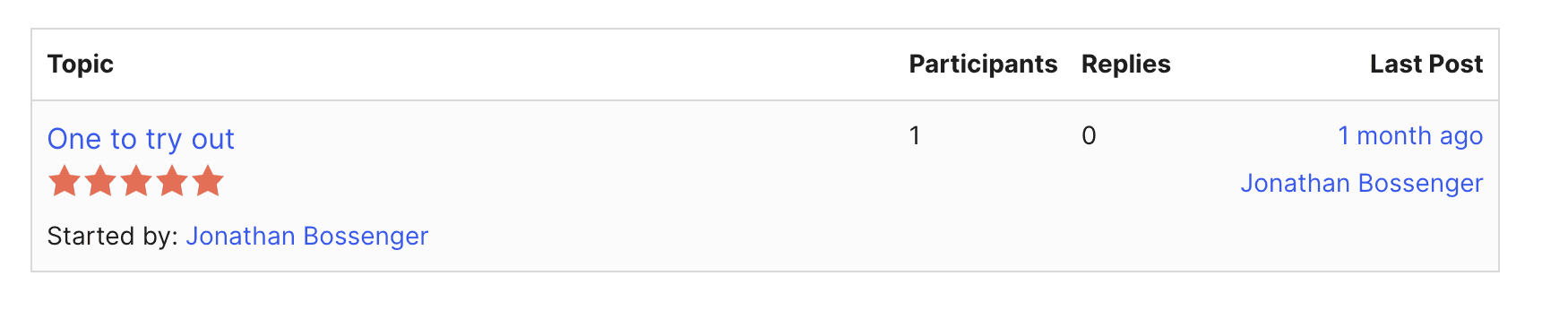
For a plugin that had about ten users and no reviews at the time, that meant a lot. He was clear on stream that he was rating what he could test in an hour, not features he hadn’t explored yet — which is exactly why the review matters to us. It’s an honest first impression from someone who tried it cold.
What we shipped in response
We took every point seriously. Here’s what has shipped since his stream, up to MCP Manager 0.3.6.
01 · Architecture
Facade toolsets
Jonathan’s biggest idea is now how AcrossAI servers work. Instead of hundreds of individual tools, a server exposes a small set of grouped toolsets — Content, Blocks, Appearance, Configuration, Users, Diagnostics and more — each letting the AI discover, inspect and run the abilities in its group through one entry point. Activate Abilities Manager and they go live immediately, with nothing to configure.
02 · Tools
A Tools tab you can trust
The Tools tab shows exactly what each server is configured with, and Reset, Enable All or adding a single tool no longer wipes the rest of your selection. New servers arrive with their type’s tools already selected, and a fresh-install bug that could leave a server empty is fixed and repaired automatically.
03 · Servers
A short, simple address
A ready-made AcrossAI server now lives at /acrossai/mcp, the address Jonathan suggested. It arrives switched off with its toolsets already selected, and serves nothing until you enable it.
04 · Local development
Local HTTPS that just works
On local and development sites, every generated client config now includes the TLS setting that self-signed certificates need, with a notice explaining it and a link to Automattic’s troubleshooting guide. Live sites are untouched.
05 · Onboarding
A restart step, built in
The Quick Connect wizard and the MCP Clients tab now follow the same numbered steps, ending with “Restart the MCP client” and the exact action for each of the 16 supported clients.
06 · Pricing clarity
Free vs. Pro, clearly split
Config-file clients, CLI browser approval and WP-CLI connections are all free. AcrossAI Pro is only needed for the one-click hosted OAuth connectors for Claude, ChatGPT, Grok, Gemini and Cursor, which handle the OAuth flow and token storage for you.
07 · Admin experience
A quieter setup
Quick Connect is reachable from the plugins list, the MCP Servers screen, Settings and the admin bar. The five connection tabs are merged into one, and warnings only appear on servers that are actually enabled.
Unchanged: self-hosted, no relay. Jonathan’s data question is the same one we built AcrossAI around. Your site talks to your AI client directly, and no one else sits in the middle.
Thank you, Jonathan
Public, unscripted testing is how the WordPress ecosystem gets better. Jonathan could have made a thirty-second verdict video. Instead he spent an hour showing exactly where each plugin shines and struggles, and he was generous with his ideas even while insisting, “I’m not telling you what to do.” We listened anyway.
Run the same test yourself
Install the latest MCP Manager, point it at your local site, and see how far you get without opening the docs. Then tell us — Jonathan’s feedback shipped in weeks, and yours can too.
Video by Jonathan Bossenger, shared with credit under CC BY 4.0.