
AI Connectors · Included in MCP Manager
The one-click Claude connector for WordPress
The Claude connector in MCP Manager turns your endpoint into a one-click remote connector for Claude — paste one URL, approve the consent screen, and see, manage, or revoke every connection from your dashboard. No JSON, no OAuth fields to fill in.
Runs on your server · Bring your own AI · No middleman cloud
The benefits
Everything handled, nothing to wire
Zero setup
Connect from a directory in a couple of clicks. No transport configuration, no server process to run, no client library to install.
Cross-surface availability
The same connection works across the web, desktop, and mobile clients, plus agentic surfaces like Cowork, without reconfiguring each one.
Managed authentication
OAuth flows, token storage, and refresh are handled for you. No credential management code, no expired-token debugging.
Automatic tool discovery
Once connected, the server’s tools appear in the conversation. No manual registration or schema wiring.
Granular control
Enable or disable connectors per chat, revoke access at any time, and see exactly which tools are available before they run.
Inherits your guardrails
Every connection runs through MCP Manager, so your allow / ask / deny rules and audit log apply unchanged.
Why it’s worth it
Stop wiring Claude up by hand
MCP Manager opens the door. AI Connectors make connecting — and disconnecting — a single click.
Without AI Connectors
- Hand-edit JSON and OAuth fields for every client
- No single place to see who’s connected
- Cutting access means digging through tokens by hand
- Re-register the client just to reconnect it
- Repeat the same fiddly setup on every site
With AI Connectors
- Copy one MCP URL and paste it into Claude
- Every active connection listed in one dashboard
- Revoke tokens, delete a client, or cut access site-wide
- Re-authorize without re-registering
- The same one-click flow on every licensed site
Watch: Claude connector walkthrough
What’s inside
Everything Claude needs — and everything you need to stay in control
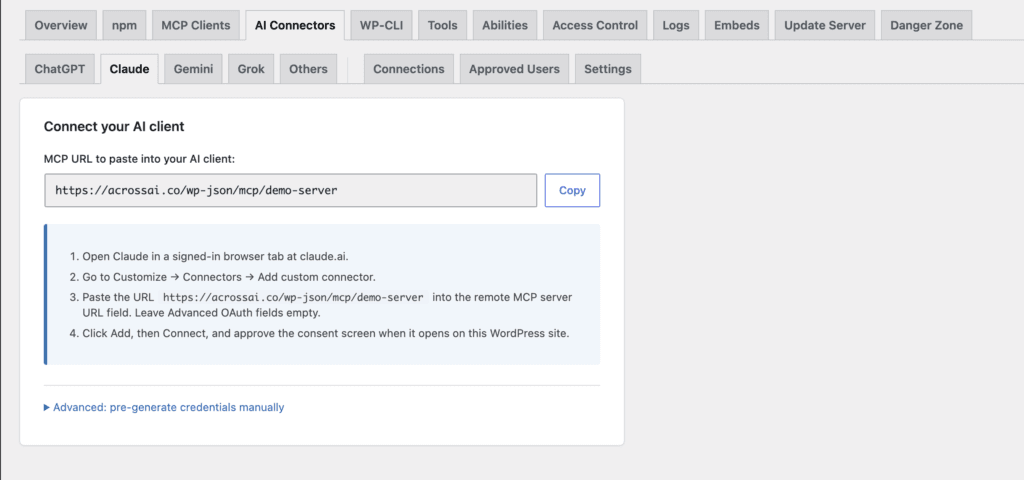
Connect your AI client
Copy your site’s MCP URL and paste it straight into Claude as a custom connector — the on-screen steps walk you through it. Approve the consent screen on your site and you’re live.
- One copyable MCP URL — no config files
- Add under Customize → Connectors in claude.ai
- Leave the Advanced OAuth fields empty — it just works
- Need tokens up front? Pre-generate credentials manually
See & sever every connection
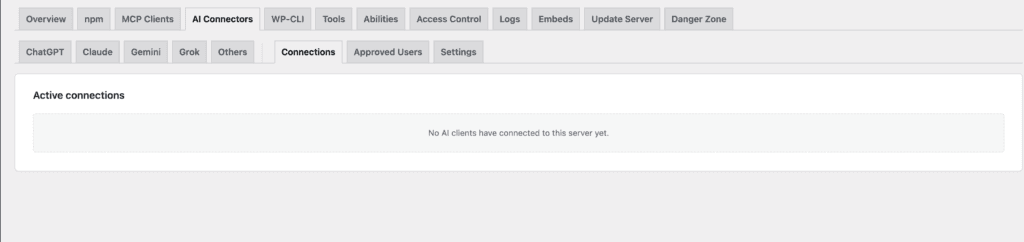
The Connections tab lists every connected client — its ID, name, how it registered, active tokens, users, and when it was issued — so nothing connects to your site without you knowing.
- Revoke tokens — kill this client’s tokens, keep the client
- Delete client — remove it entirely; full re-registration to return
- Revoke from all servers — site-wide kill switch for a compromised client
Access control on your terms
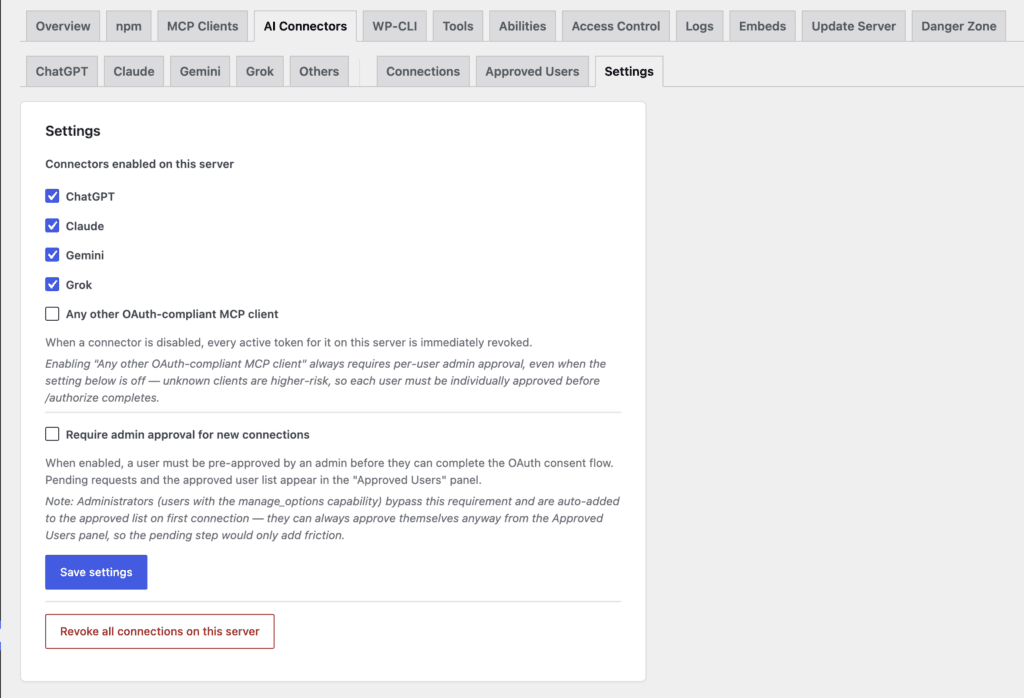
Decide who can connect and when. Toggle the connector on or off per server, gate new connections behind admin approval, and revoke everything in an emergency — all from one Settings panel.
- Enable / disable per server — disabling revokes every active token at once
- Require admin approval before a user completes the OAuth consent flow
- Revoke all connections for this connector in one click
Going further
The connectors are free. Here’s what Pro adds.
All five AI connectors and the connections dashboard are included in MCP Manager at no cost — there is nothing to buy to connect your site. AcrossAI Pro is a separate, optional add-on for membership-aware access control, 276 extra abilities for MailerPress, LearnDash, BuddyBoss and GeoDirectory, and the n8n connection. See Pro pricing →
Built into MCP Manager
One plugin. Five AI connectors.
MCP Manager turns your endpoint into a native remote connector for all five AI clients — paste one URL, approve the consent screen, and your WordPress is live with that AI. One plugin, five AIs, one dashboard.
Claude Connector
Add your MCP endpoint to Claude as a one-click remote connector — web, desktop, and Code — and manage every connection from your dashboard.
Explore the Claude connector →ChatGPT Connector
Connect ChatGPT to WordPress through a governed MCP URL — no JSON, no OAuth fields — with full visibility and one-click revoke.
Explore the ChatGPT connector →Grok Connector
Give Grok a native home in WordPress via one MCP endpoint — connect across surfaces and sever access site-wide whenever you need.
Explore the Grok connector →Gemini Connector
Point Gemini at your MCP endpoint and work with WordPress directly — governed access, full audit visibility, and revoke in one click.
Explore the Gemini connector →Cursor Connector
Connect Cursor to your MCP endpoint and work on WordPress from the editor: governed access, full audit visibility, and revoke in one click.
Explore the Cursor connector →Common questions
Do I need MCP Manager to use AcrossAI Pro?
Yes. AcrossAI Pro is a premium plugin that extends the free MCP Manager host plugin. Install and activate MCP Manager first, then install AcrossAI Pro on top. The Claude connector is one of five AI connectors that ship inside MCP Manager itself. AcrossAI Pro adds membership-aware access control, 276 extra abilities and n8n.
How do I actually connect Claude?
Open the Generate tab, copy your MCP URL, then in claude.ai go to Customize → Connectors → Add custom connector, paste the URL (leave the Advanced OAuth fields empty), click Add and Connect, and approve the consent screen on your WordPress site.
How do I revoke access if I need to?
From the Connections tab you can Revoke tokens (kill a client’s tokens but keep it), Delete client (remove it entirely), or Revoke from all servers (a site-wide kill switch). You can also disable the connector in Settings, which instantly revokes every active token.
Can I require approval before someone connects?
Yes. Turn on “Require admin approval for new connections” in Settings — a user must be pre-approved before they can complete the OAuth consent flow. Administrators bypass this and are auto-added on first connection.
Give Claude a native home in WordPress
Copy one URL, approve the consent screen, and start working with Claude across your site in the next five minutes.
Included in MCP Manager · Runs on your server · Bring your own Claude