
MCP Manager is a UI for the MCP Adapter. It does not replace the Adapter or reimplement it — it ships the Adapter and uses it internally for every piece of the protocol work. What it adds is ease of connection and control: create servers, choose which abilities are exposed, decide who is allowed to connect, and copy a ready-made config for your AI client. With the Adapter on its own, every one of those decisions can only be made in PHP code, and every change means editing a file and deploying it. MCP Manager turns them into screens.
So the two are not really rivals — MCP Manager without the Adapter would have nothing to manage, and the Adapter without a UI is a library only a developer can reach. The real question is who gets to make the configuration decisions on your site: whoever has commit access, or an administrator in a browser. And if you arrived looking for an MCP Adapter alternative, first decide what you want to get away from: the official protocol layer itself, or having to configure it in PHP. The comparison below covers both.
MCP Adapter vs MCP Manager at a glance
| MCP Adapter | MCP Manager | |
|---|---|---|
| What it is | Official WordPress library | Free WordPress.org plugin built on that library |
| Maintained by | WordPress AI Team | AcrossAI |
| Admin UI | None — by design | Full: servers, abilities, tools, access, logs |
| Configuration | PHP, then deploy | Dashboard, effective immediately |
| Number of servers | Whatever you code | Unlimited, from a list table |
| Exposing abilities | Hard-coded per server | Toggles, search, filters, bulk actions |
| Authentication | You wire it up | Native Application Passwords, per client |
| Access control | Ability-level permission callbacks | Ability-level plus per-server rules, checked on every request |
| Connection methods | You implement the transport | HTTP, STDIO, npx CLI, one-click connectors |
| Client setup | Write the JSON yourself | Copy-paste config per client |
| Audit trail | None built in | Connection log per server |
| Who it is for | Developers building on MCP | Site owners, agencies, and developers who would rather not redeploy |
What the WordPress MCP Adapter actually does
The Model Context Protocol is an open standard for how applications hand context to AI models. The MCP Adapter is WordPress’s implementation of it, built and maintained by the WordPress AI Team as part of the AI Building Blocks initiative.
Its job is translation. It reads the abilities registered on your site through the Abilities API and converts them into MCP tools, resources and prompts, so a client like Claude, ChatGPT, Cursor or VS Code can discover what your site can do and call it directly. It handles HTTP and STDIO transport and creates a default server automatically.
It does that job well. But it was built as a library for developers, not a product for site owners:
- You register your MCP server in code.
- You decide in code which abilities that server exposes.
- You wire up authentication yourself.
- Every change — one more ability, a second client, a lockdown to editors only — means editing a file and deploying it.
For a developer with SSH access that is a mild inconvenience. For a site owner it is a wall.
“My MCP client connects but shows no tools”
This is the single most common thing people hit with a bare Adapter install, and it is not a bug. Nothing in the WordPress Abilities API is exposed over MCP unless it has been explicitly marked as MCP-public. On a stock site with no extra configuration, a client will authenticate successfully and then sit there with an empty tool list.
There are two ways out. Write custom PHP to mark specific abilities as MCP-accessible — or install something that gives you a screen for it. That is the entire reason MCP Manager exists.
What MCP Manager adds on top
MCP Manager is a free WordPress.org plugin. It bundles the MCP Adapter and hands it all the actual protocol work — the protocol does not change, the Adapter still owns transport and translation. What changes is that the PHP becomes screens.
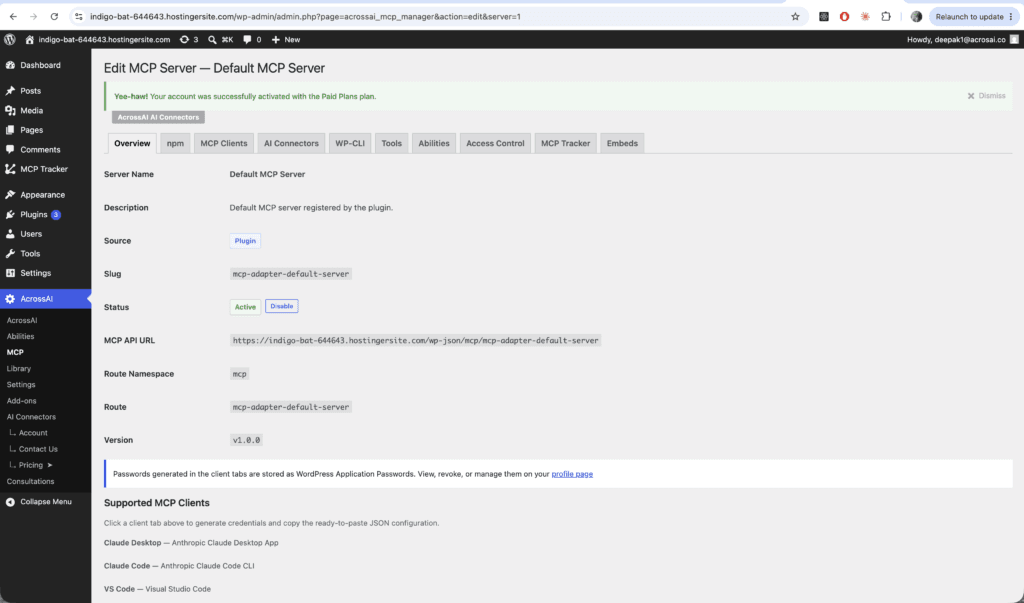
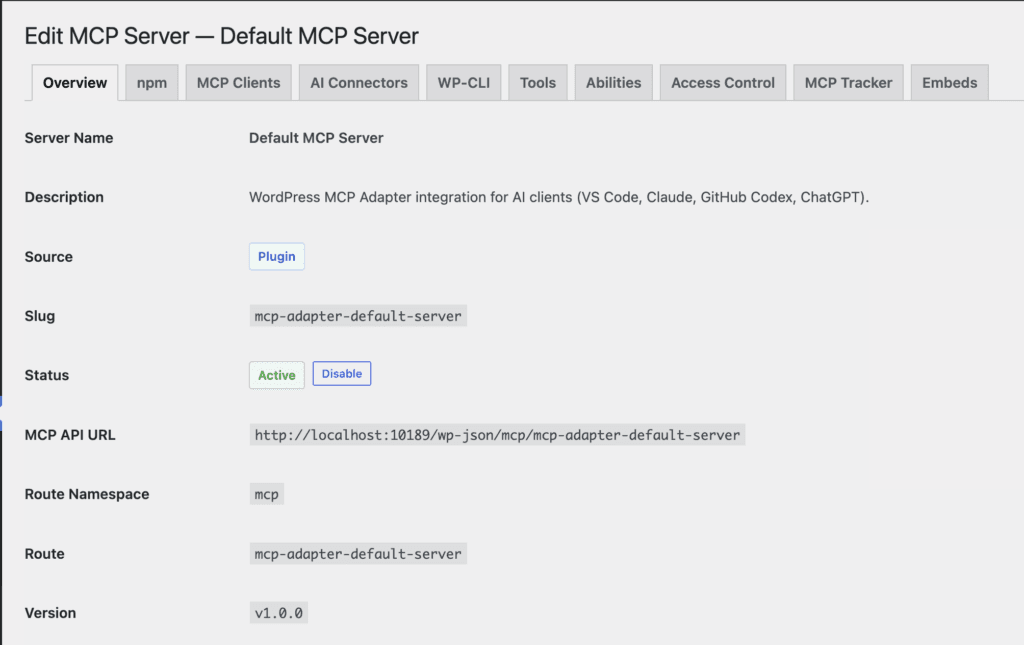
On activation it inherits the Adapter’s default server rather than replacing it, so there is nothing to create before you can start. Open the server and you get an Overview with its live endpoint URL:
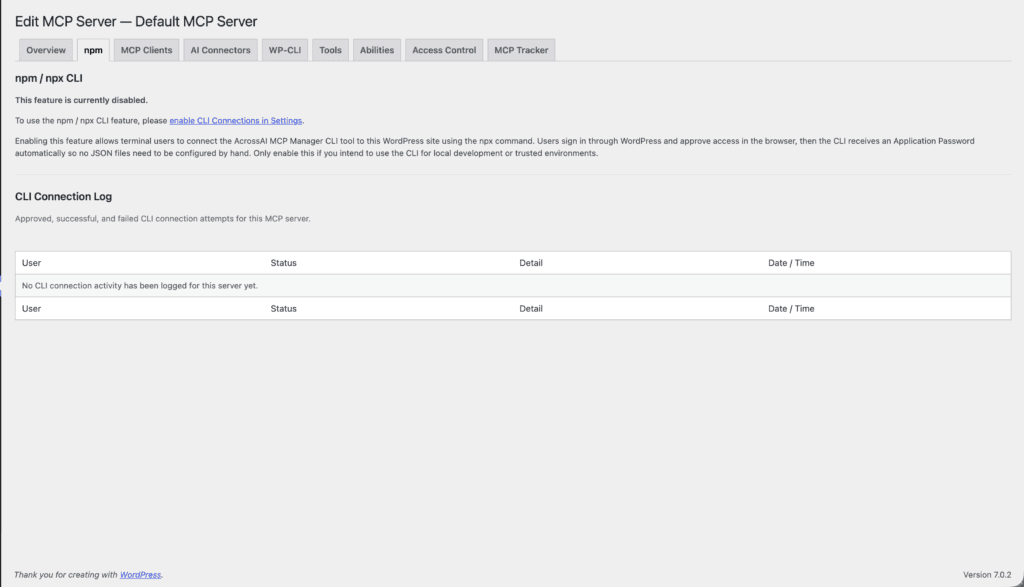
Every decision the Adapter expects in PHP has a tab:
Quick Setup: one guided flow instead of eleven tabs
Eleven tabs is a lot for a first setup, so version 0.3.0 added Quick Setup — one guided flow that skips whatever does not apply, generates the Application Password for you, and opens automatically on activation. Usually five or six steps instead of thirteen. Here it is end to end:
Two gates, not one: Abilities and Tools
This is the part that trips up anyone moving from raw Adapter config, and it is worth being precise about. MCP Manager separates what this server may see from what clients may call.
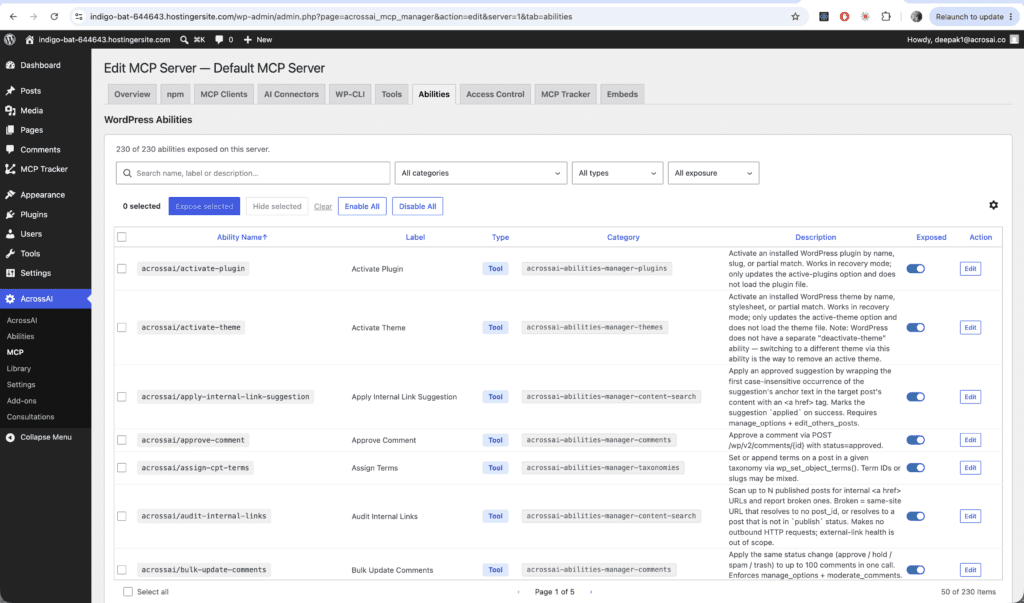
Abilities — the wide gate
The full catalogue of every ability registered on your site, with an Exposed toggle per row plus search, filters and bulk enable/disable. Exposure is enforced when a tool is called, not just when it is listed — a hidden ability is refused even if a client asks for it directly.
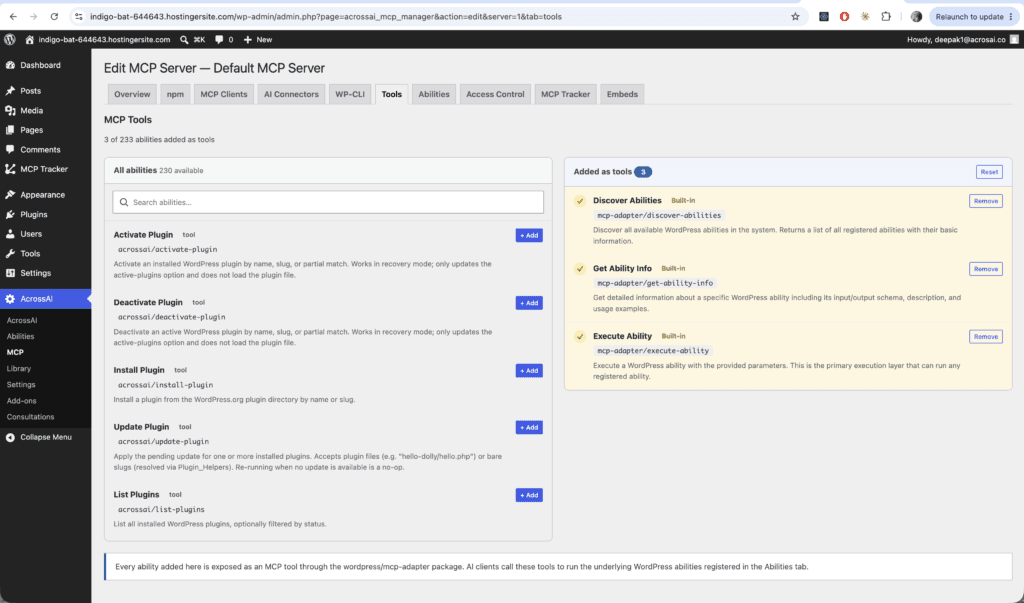
Tools — the narrow gate inside it
A two-column picker: every available ability on the left, everything added as a callable tool on the right. Only abilities exposed on the Abilities tab can appear here — if something you expect is missing from the left column, that is why.
Access Control: who is allowed to connect
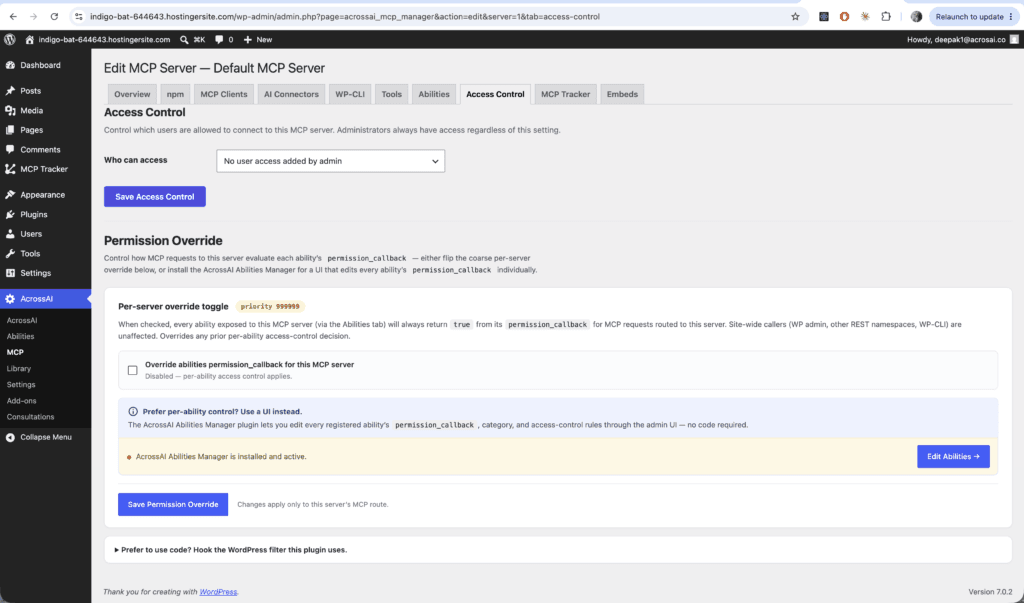
The Adapter gives you ability-level permission callbacks. MCP Manager adds a second lock on the same door: a per-server rule deciding who may connect at all, enforced on every request. A client holding a perfectly valid Application Password is still turned away if its user is not allowed on that server.
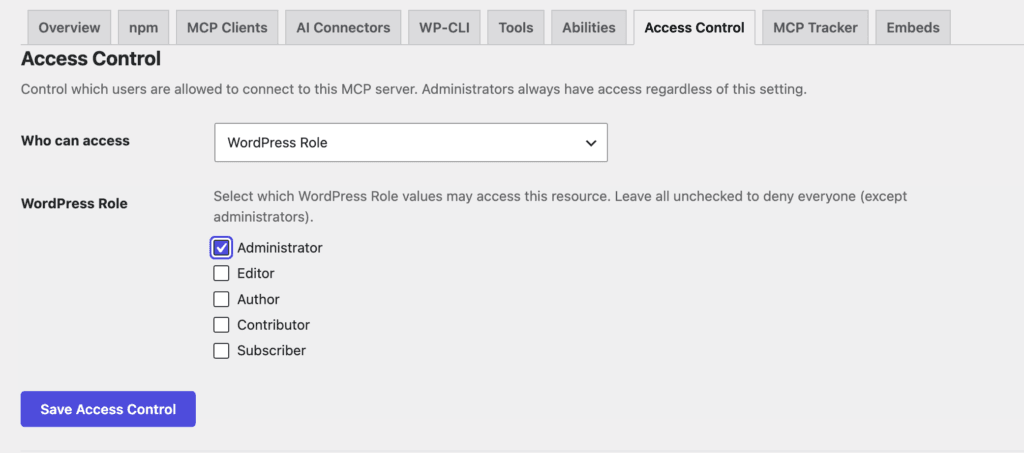
Our recommendation: set Who can access → WordPress Role → Administrator and save. On most sites there is no reason for anyone but an administrator to be driving an MCP server, and this is the clearest way to say so.
The tab also carries a per-server permission override. When ticked, every ability exposed to that server is allowed for MCP requests routed to it, regardless of the ability’s own permission rule. It is a blunt instrument — useful in specific situations, not something to enable casually. Site-wide callers such as wp-admin, other REST routes and WP-CLI are unaffected by it.
Full details: Access control and permissions. For the wider picture, see WordPress MCP security.
Four ways to connect an AI client
The Adapter gives you an endpoint. MCP Manager gives you four documented routes to it.
| Method | Best for | Setup effort |
|---|---|---|
| AI Connectors | Hosted AI — Claude, ChatGPT, Grok, Gemini, Cursor | Paste one URL |
| MCP Clients | Desktop apps and code editors | Copy-paste a config file |
| npm / npx | Terminal users, local development | One command, browser approval |
| WP-CLI (STDIO) | Local installs, no network exposure | Copy-paste a config file |
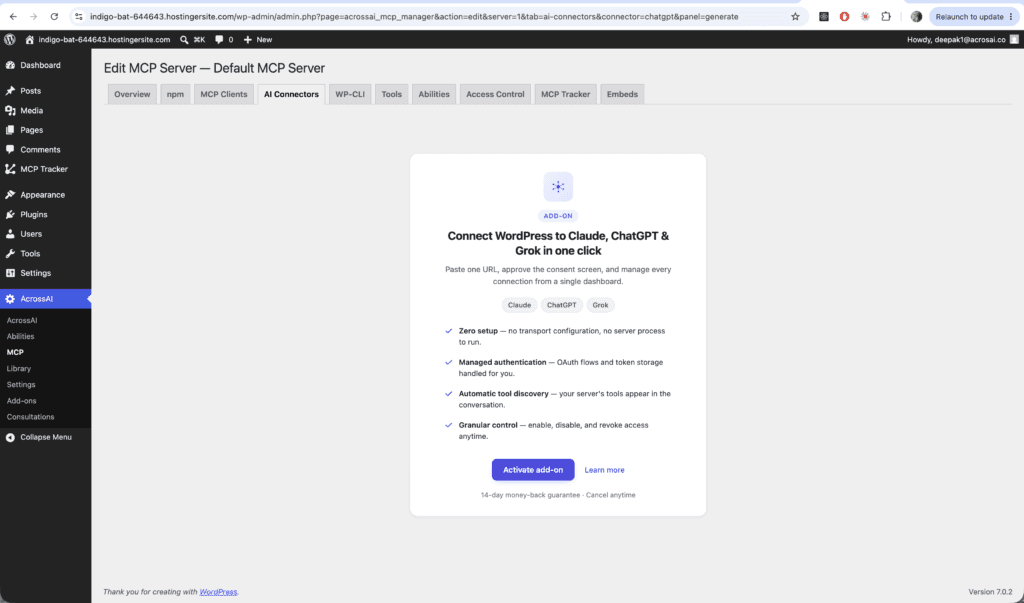
AI Connectors — one URL, no local setup
Paste one URL into Claude, ChatGPT, Grok, Gemini or Cursor and approve a consent screen on your own site. No config file, no server process, nothing installed locally. This is the route most site owners take.
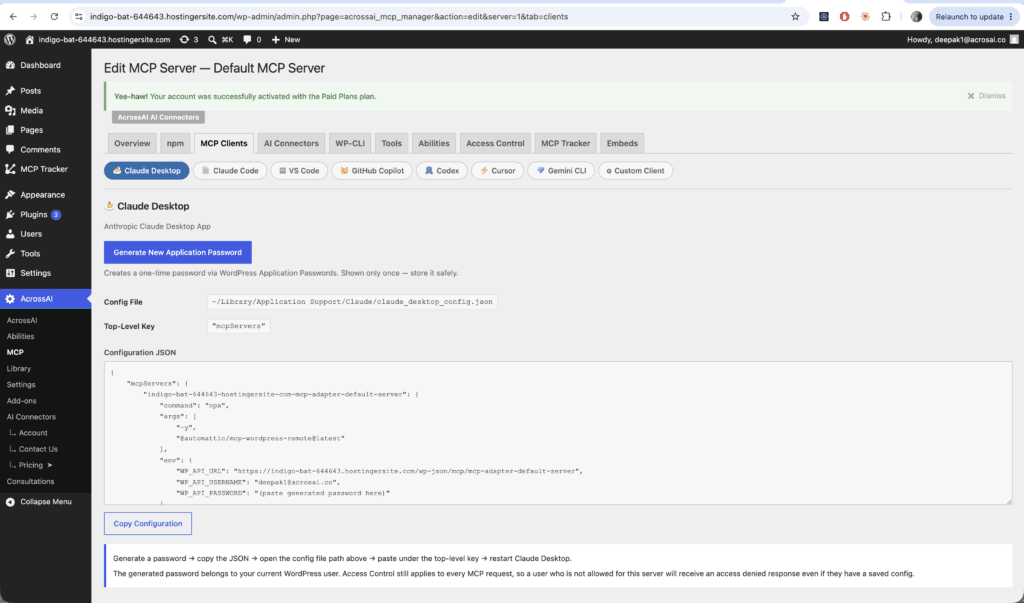
MCP Clients — ready-made config per app
Sixteen clients are covered out of the box: Claude Desktop, Claude Code, VS Code, GitHub Copilot, Codex, Cursor, Gemini CLI, Windsurf, Zed, Cline, Roo Code, Kilo Code, Amazon Q Developer, OpenCode, Antigravity, and a custom option for anything else that speaks MCP. Pick your client’s sub-tab and the page hands you a one-click Application Password (shown once), the exact config file path and top-level key, and a copy-paste JSON block.
npm — one command, browser approval
Enable CLI Connections in Settings, copy the command, run it. Your browser opens an approval page; approve it and the CLI receives a one-time Application Password and writes your client config for you. Every attempt is recorded in the CLI Connection Log on the same tab.
npx -y @acrossai/mcp-manager --siteurl=https://example.com --server=default-mcp-server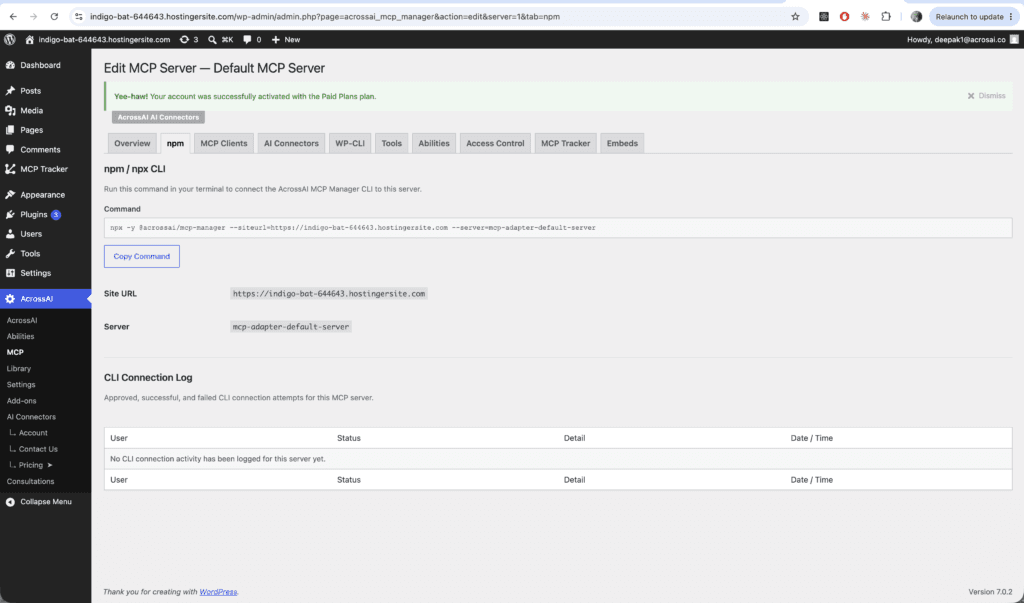
WP-CLI — STDIO, nothing over the network
For local installs. Instead of calling a network endpoint, the client launches WP-CLI as a subprocess, so no credentials travel over the network at all.
wp mcp-adapter serve --server=<slug> --user=admin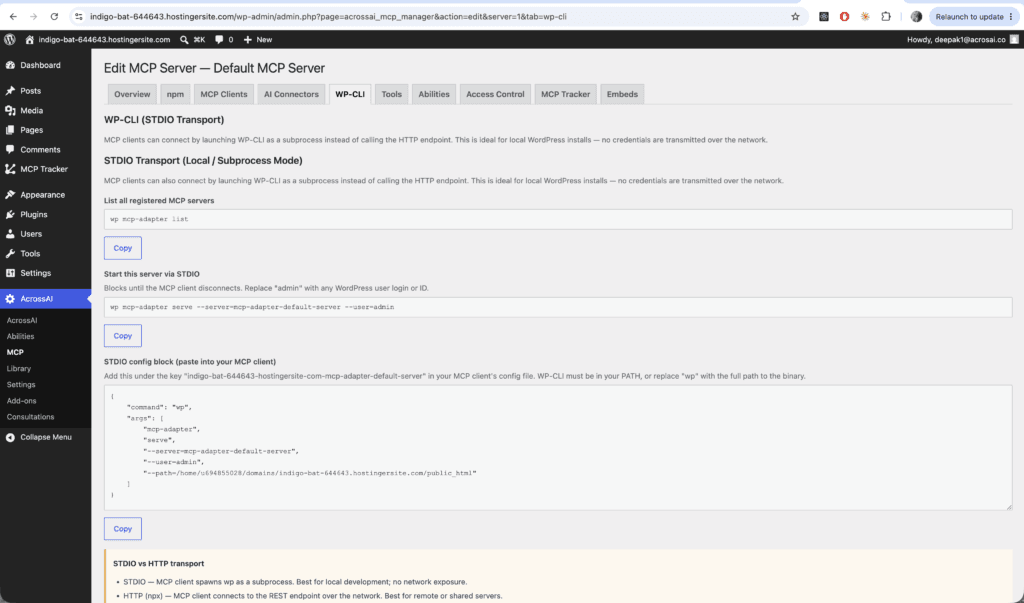
Three of these — npm, MCP Clients and WP-CLI — run through Node on your machine, so you need Node.js 22 or newer. AI Connectors needs nothing installed locally.
Revoke any connection in one click
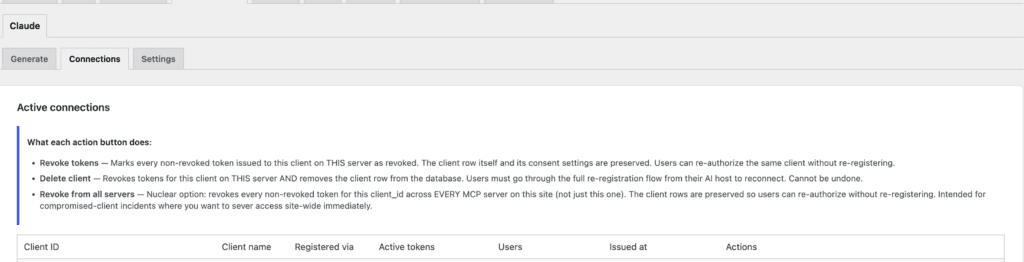
Every connected client is listed with its own controls: revoke its tokens, delete the client, or revoke it from every server at once. The Adapter has no equivalent — with a hand-rolled setup, revoking access means finding and deleting the right Application Password by hand.
A note on having something worth exposing
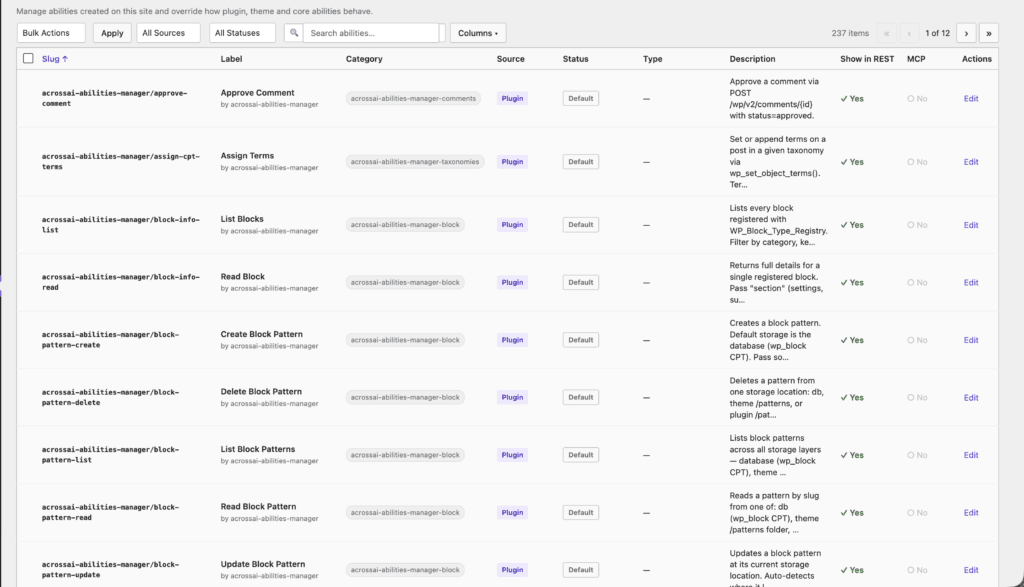
Neither the Adapter nor MCP Manager invents abilities. They expose what is registered. A stock WordPress install registers very few, which is why a fresh MCP server has so little to offer even once it is correctly configured.
The free AcrossAI Abilities Manager adds 350+ ready-made abilities — content, media, users, menus, taxonomies, themes, plugins, files, database, cron and site health — each gated to administrators by its own permission rule.
MCP Adapter alternatives: how MCP Manager compares to WPVibe and Novamira
The Adapter is not the only way to get MCP into WordPress. If you are searching for an MCP Adapter alternative, two projects come up constantly — and they solve a different problem than MCP Manager does, so it is worth knowing which one fits your situation. WPVibe (from SeedProd) pairs a plugin with a hosted MCP service. Novamira is an open-source plugin that gives an agent direct PHP execution inside your WordPress process.
| MCP Manager | WPVibe | Novamira | |
|---|---|---|---|
| Built on | Official WordPress MCP Adapter + Abilities API | Own implementation; supports the Abilities API | Own implementation; PHP runtime access |
| Architecture | Entirely self-hosted — no relay | Plugin plus a hosted service handling OAuth, routing and tool registration | Entirely self-hosted — no relay |
| How the AI acts | Declared abilities only, each with its own permission rule | REST API, theme files, allowlisted WP-CLI commands | Direct PHP execution, filesystem, database, WP-CLI |
| Production use | Designed for it | Yes | Documentation scopes it to development and staging |
| Multiple servers | Yes, each with its own abilities and rules | One | One |
| Per-server access control | User, role, capability, or your own policy provider | Capability-checked | Application Password, admin-scoped |
| Best when you want | Governed, granular control over a live site | The fastest hosted setup | An agent that writes and runs real code |
The distinction that matters is what the AI is allowed to touch. Novamira hands an agent the PHP runtime — enormously capable, and the reason its own documentation scopes it to development and staging. WPVibe routes through a hosted service for OAuth and tool registration. MCP Manager stays on the official Adapter and the Abilities API: every callable action is a declared ability with its own permission rule, exposed only if you switch it on, and refused at the door if the caller is not allowed. That is a deliberately narrower surface, and it is what makes it safe to point at a production site.
So which do you actually need?
Use the MCP Adapter on its own if you are a plugin developer registering and testing abilities, you have exactly one server whose configuration will never change, and you are comfortable that every adjustment is a code change and a deploy.
Use MCP Manager if you want to expose or hide abilities without a deploy, run more than one server with different permissions, connect a client without hand-writing JSON, hand any of this to a non-developer, or keep a record of who connected and when.
For agencies the answer is usually obvious. You are not going to ship a PHP change to forty client sites because one of them wants their editor to stop having database access.
Frequently asked questions
Is MCP Manager a replacement for the MCP Adapter?
No. MCP Manager ships the MCP Adapter and depends on it. The Adapter still does all the protocol work — translating abilities into MCP tools and handling transport. MCP Manager adds the admin screens over the top. Installing MCP Manager means you have both.
Does the WordPress MCP Adapter have an admin UI?
Not on its own. The Adapter is a developer library with no settings screens by design — servers, exposed abilities and authentication are all configured in PHP. MCP Manager is what adds those screens. If you want the full setup walkthrough rather than this comparison, see a UI for the MCP Adapter.
Why does my MCP client connect but show no tools?
Because nothing is exposed over MCP unless it has been explicitly marked as MCP-public. A stock install with the Adapter alone will authenticate a client and then offer it nothing. You either mark abilities as MCP-accessible in code, or use MCP Manager’s Abilities and Tools tabs to do it from the dashboard.
Can I run more than one MCP server on one WordPress site?
Yes. The Adapter supports multiple servers, each with its own configuration, but you create and configure them in code. MCP Manager exposes them as a list table — create, rename, enable and disable, each with its own route, exposed abilities and access rules.
How do I restrict which users can use MCP?
With the Adapter alone, through each ability’s permission callback. MCP Manager adds a per-server Access Control rule on top, checked on every request — so a user outside the allowed role is refused at the door rather than at each individual ability. Administrators always have access.
Is MCP Manager free?
Yes. MCP Manager is free on WordPress.org and works standalone. The one-click AI Connectors for hosted clients are built into MCP Manager, alongside the Application Password, npm and WP-CLI routes.
What are the requirements?
WordPress 7.0 or newer, PHP 8.1 or newer, and an administrator account. Node.js 22 or newer is needed only for the npm, MCP Clients and WP-CLI connection routes.
Do I have to configure all the tabs to get connected?
No. Quick Setup, added in MCP Manager 0.3.0, walks you through it in one linear flow and skips any step that does not apply to your setup — typically five or six steps rather than the full thirteen. It opens automatically on activation and generates the Application Password for you along the way. The per-tab configuration is still there if you prefer it.
What is the difference between MCP Manager, WPVibe and Novamira?
All three turn WordPress into an MCP server, but they differ in what the AI is allowed to do. MCP Manager builds on the official MCP Adapter and the WordPress Abilities API, so an AI client can only call declared abilities you have explicitly exposed, each carrying its own permission rule — designed for production sites. WPVibe pairs a plugin with a hosted service that handles OAuth and tool registration. Novamira gives an agent direct PHP execution inside the WordPress process, which is far more powerful and which its own documentation scopes to development and staging environments.
Is there an MCP Adapter alternative for WordPress?
Yes, depending on what you want to replace. If you want a different MCP implementation altogether, WPVibe (a plugin paired with a hosted service) and Novamira (direct PHP execution, which its documentation scopes to development and staging) are the two MCP Adapter alternatives that come up most. If what you actually want to avoid is configuring the Adapter in PHP, MCP Manager is the no-code alternative: it keeps the official Adapter underneath and replaces the code-and-deploy step with admin screens and a guided Quick Setup.
Next steps
- MCP Manager — free on WordPress.org
- A UI for the MCP Adapter — the full install-to-first-connection walkthrough
- Abilities Manager — 350+ ready-made abilities to expose
- AI Connectors — one-click connectors for Claude, ChatGPT, Grok, Gemini and Cursor
- Documentation