
As well as app configs, MCP Manager offers a CLI connection flow for terminal users. They run one npx command, approve access in the browser, and the CLI writes the config for them automatically.
Before you start: this flow runs through Node, so you need Node.js 22 or newer installed. Check with
node -vand upgrade if you are below 22.
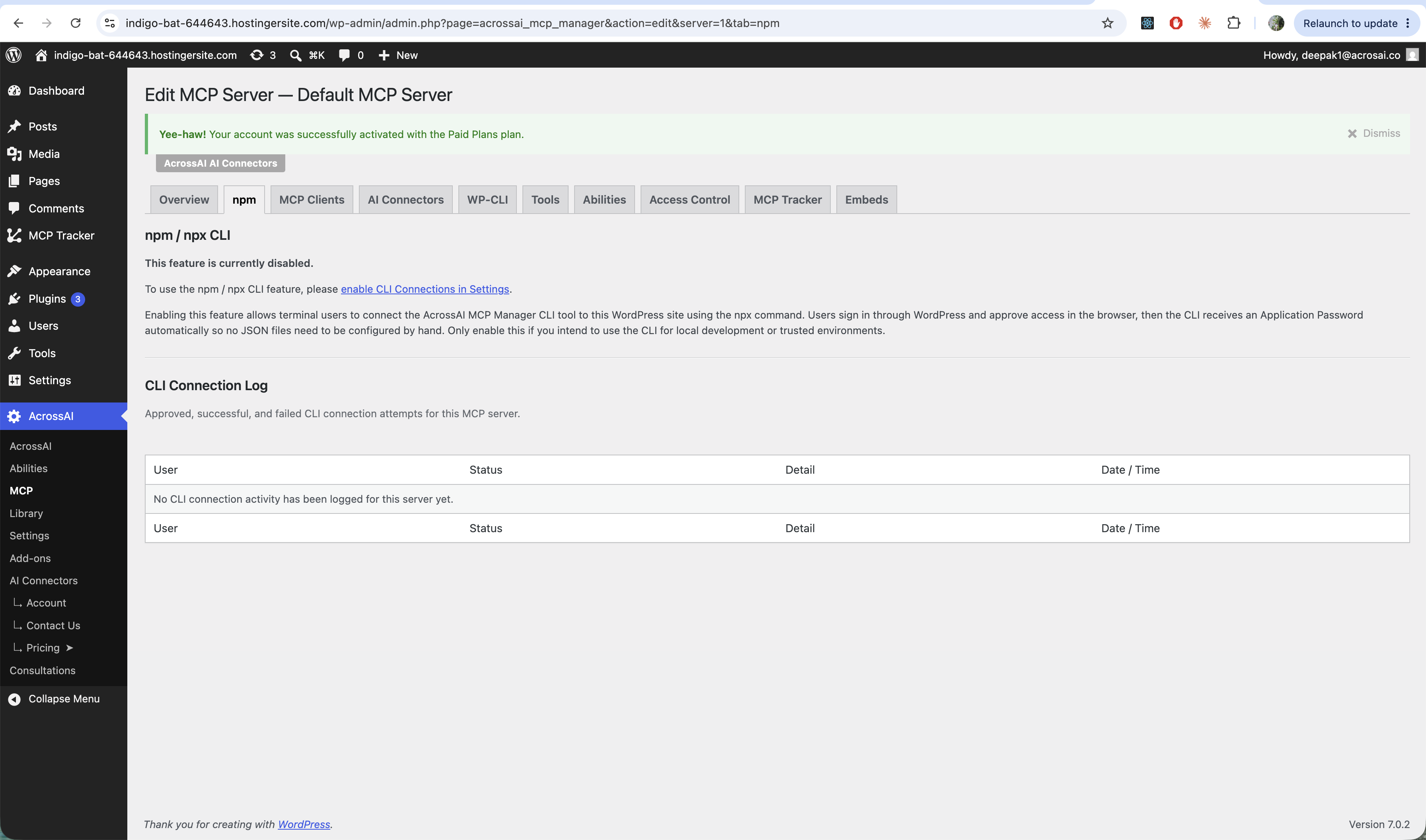
Turn it on first
The feature is off by default. Open a server’s npm tab — if it’s disabled, follow the link to enable CLI Connections in Settings. Only enable it if you intend to use the CLI for local development or trusted environments.
Connecting
Once enabled, the npm tab shows a ready-to-run command and a Copy Command button:
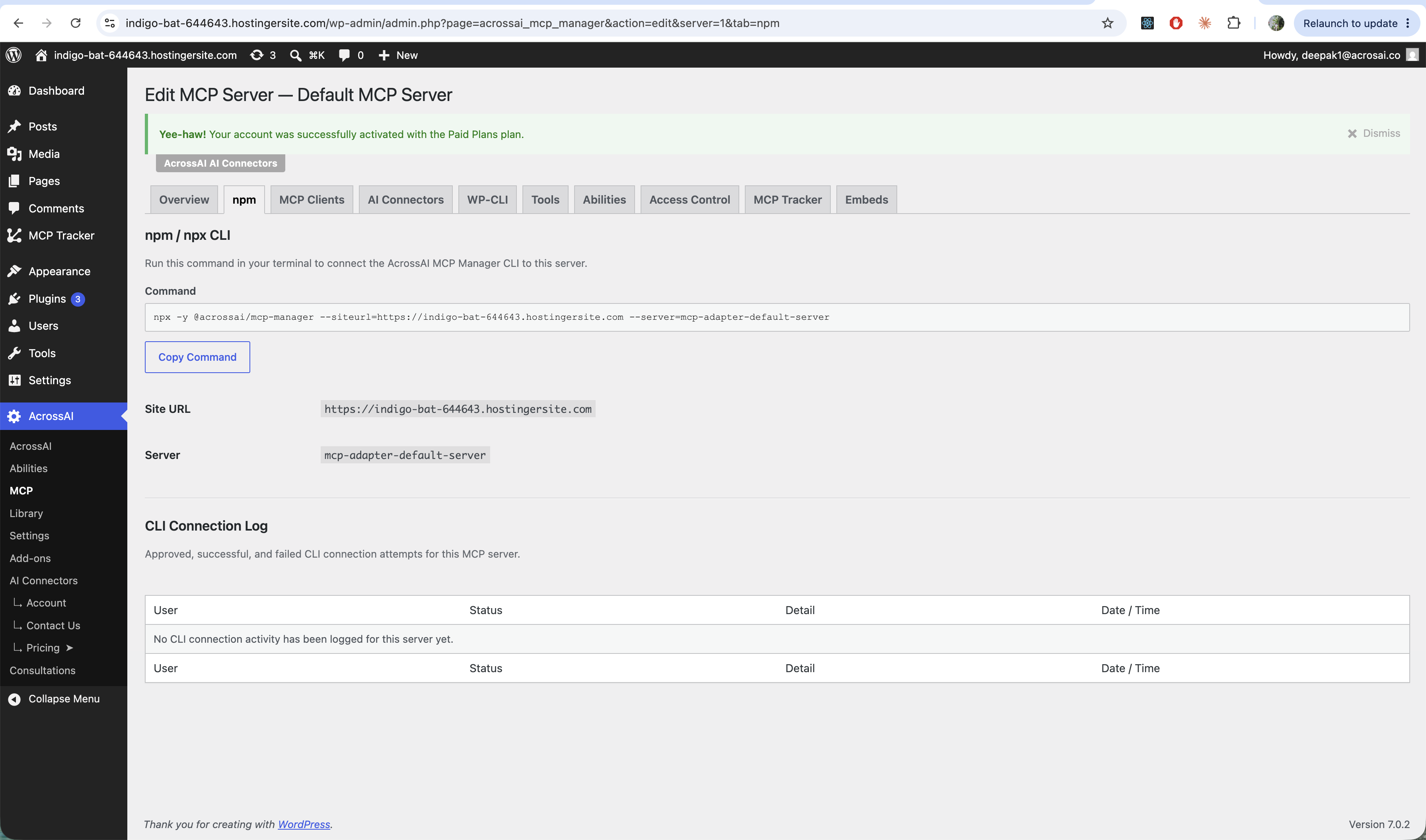
Running it opens a browser page where you sign in (if needed) and approve access. The CLI then receives a one-time Application Password and writes your client config. Every approved, successful or failed attempt is recorded in the CLI Connection Log on the same tab.
Safe by design: approval codes are single-use, the approval page is never cached, and the
/serversand exchange steps still respect per-server access control.
Note: For how to create an application password — and how to revoke one when a client no longer needs access — see Application passwords & security.
This flow was inspired by the WordPress.org MCP server, which uses the same one-command, approve-in-the-browser pattern. See Using the MCP server in the WordPress Developer Handbook.