
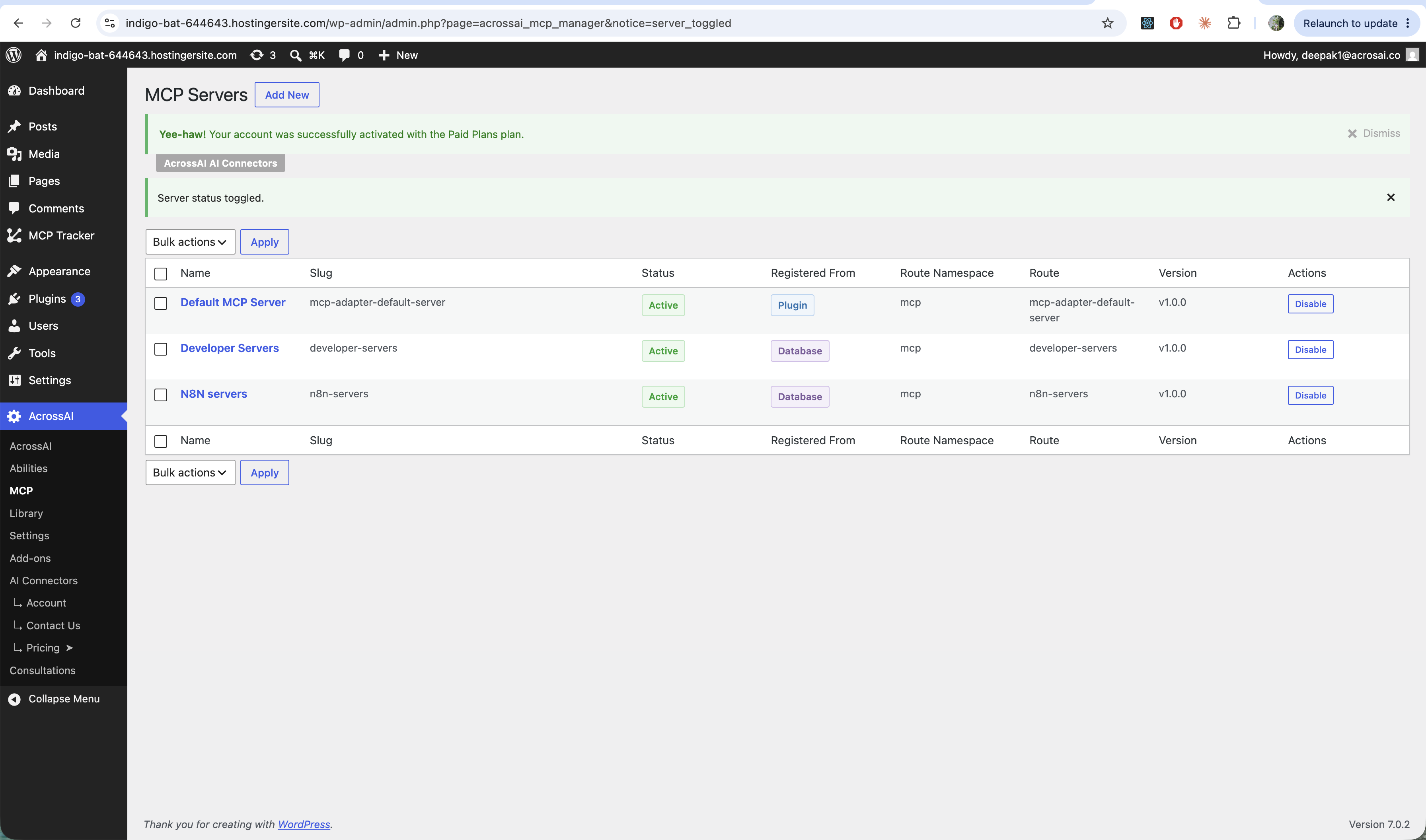
Everything in MCP Manager is organised around servers. Each server is a separate MCP endpoint with its own clients, tools, and access rules. The AcrossAI → MCP screen lists them all.
Reading the list
- Name / Slug — the server’s label and its unique id.
- Status — whether the server is Active or disabled.
- Registered From — whether it came from a Plugin or was created in the Database (by you).
- Route — the address AI clients connect to.
- Actions — the Enable / Disable button.
Add, enable or disable a server
- Click Add New to create your own server (for example, one for developers and one for an automation like n8n).
- Use the Enable / Disable action, or Bulk actions, to switch servers on or off.
- Click a server’s name to open it. The Overview tab shows its MCP API URL, route and version — handy when a client asks for the server address.
Tip: A disabled server stops answering AI clients immediately — a quick way to pause access without deleting anything.