
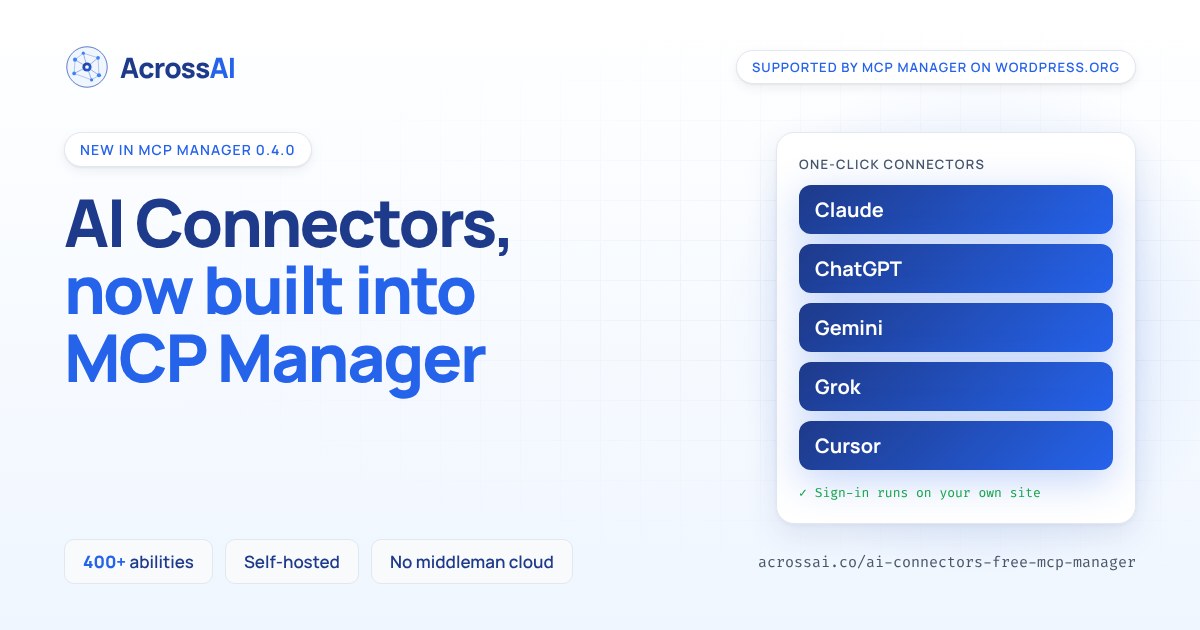
Connecting an AI client to WordPress no longer costs anything. As of MCP Manager 0.4.0, the one-click connectors for Claude, ChatGPT, Gemini, Grok and Cursor are part of the free plugin — along with the sign-in system that makes them work, the dashboard that shows you every connection, and the controls that let you cut one off.
Paste one URL into your AI client, approve the consent screen, and you are connected. No JSON config file, no OAuth fields to fill in, no licence key, and nothing relayed through a server we own.
The short version
- One-click connectors for Claude, ChatGPT, Gemini, Grok and Cursor — free, in the plugin.
- Sign-in runs on your own site. The AI talks to your domain directly — nothing is relayed through us.
- A Connections dashboard showing every connected client, and one-click revoke when you want one gone.
- Load any wp-admin page once after updating so existing connections carry over.
- AcrossAI Pro is still a product — it is now about membership-aware access control, 276 business-plugin abilities and n8n.
What you get, free
Four things, and they work together.
- Five one-click connectors. Claude, ChatGPT, Gemini, Grok and Cursor each get a proper setup path — the right steps for the right surface, whether that is the web app, the desktop app, mobile or the editor.
- Sign-in that lives on your site. The AI client asks your WordPress for permission, you approve it on a consent screen with your own branding, and that is the whole handshake. No middleman holds your keys.
- A dashboard for every connection. See which clients are connected, who connected them and when — and revoke any of them without touching the others.
- Controls on who may connect at all. Turn a connector on or off per server, require your approval before anyone completes a connection, and cut everything off at once if you ever need to.
All four used to sit behind the paid add-on. They are in the free plugin now, and AcrossAI Pro builds on top of them rather than keeping its own copy.
Watch: connecting Claude, start to finish
Copy the MCP URL from your dashboard, add it in Claude as a custom connector, approve the consent screen on your own site. That is the whole flow — and it is the same one for ChatGPT, Grok, Gemini and Cursor.
The full walkthrough lives on the Claude connector guide, along with the per-surface notes for Claude web, desktop and Code.
What’s inside
Everything the AI needs — and everything you need to stay in control
1
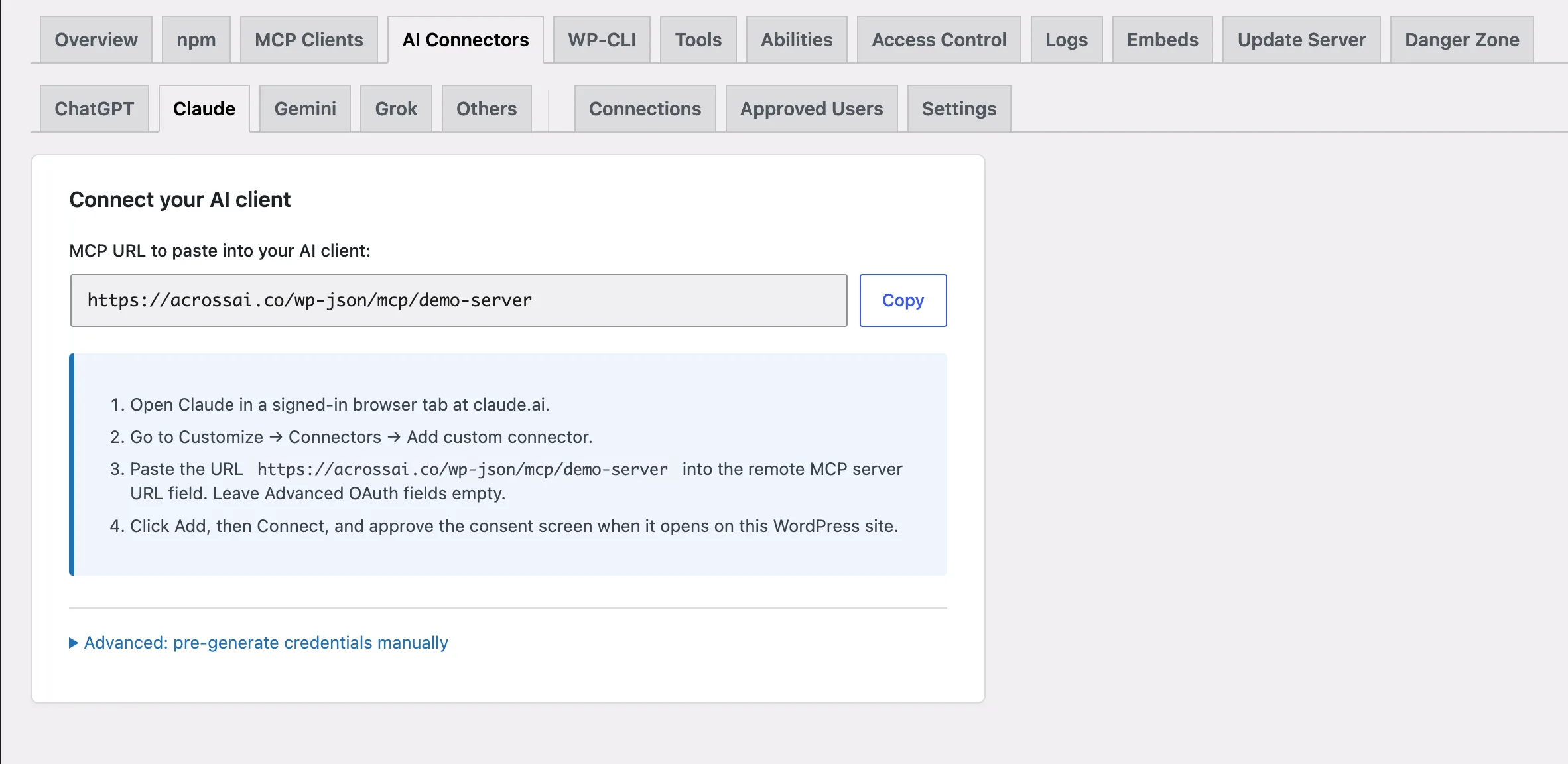
Connect your AI client
Copy your site’s MCP URL and paste it straight into Claude, ChatGPT, Grok, Gemini or Cursor as a custom connector. Approve the consent screen on your site and you are live.
- One copyable MCP URL — no config files
- Add under Customize → Connectors in each client
- Leave the Advanced OAuth fields empty — it just works
2
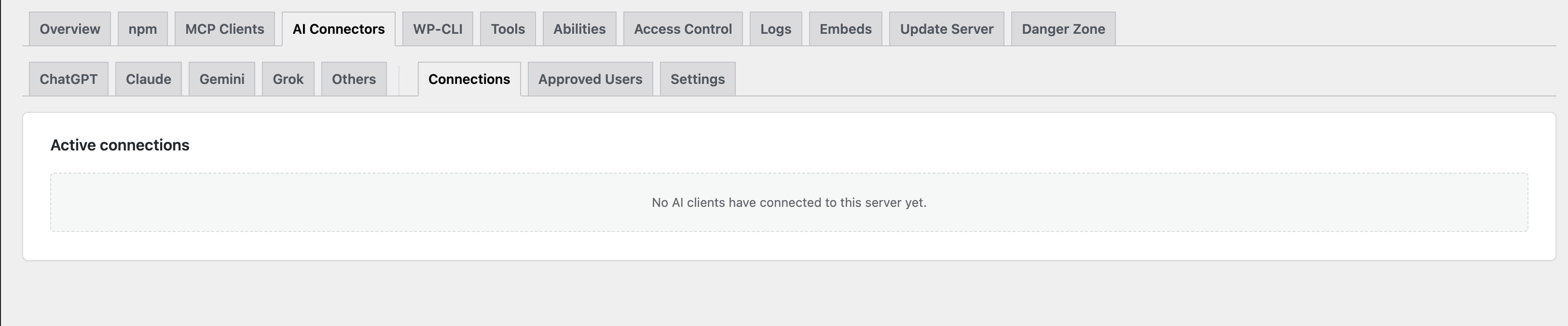
See and sever every connection
The Connections tab lists every connected client — name, how it connected, who is using it and when it was issued — so nothing connects without you knowing.
- Revoke access — cut this client off, keep it listed
- Delete client — remove it entirely; it reconnects from scratch to return
- Revoke from all servers — one switch for a client you no longer trust
3
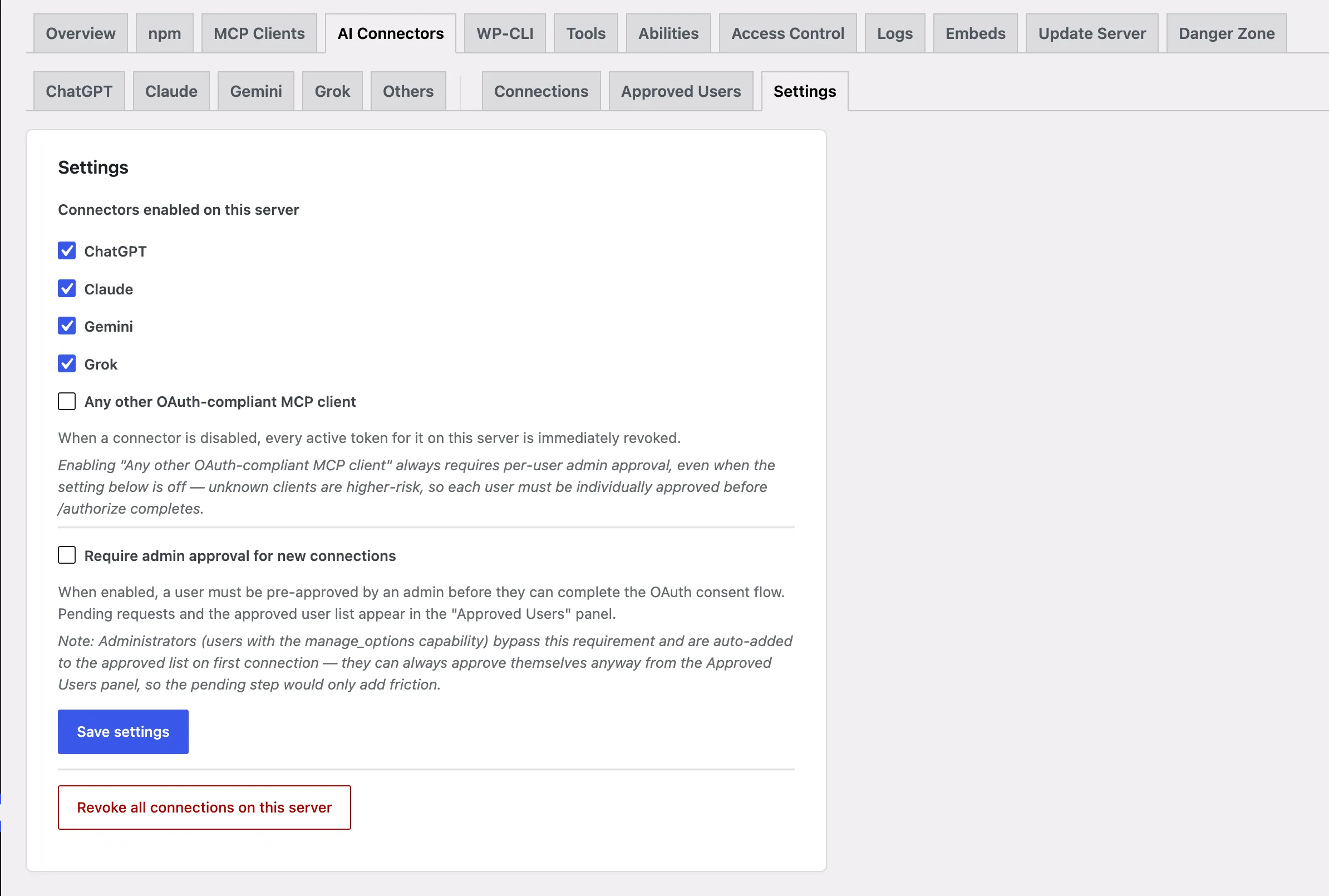
Access control on your terms
Decide who can connect and when. Toggle the connector on or off per server, gate new connections behind admin approval, and revoke everything in an emergency.
- Enable / disable per server — disabling cuts off every active connection at once
- Require admin approval before a user completes a connection
- Revoke all connections for this connector in one click
Built into MCP Manager
One plugin. Five AI connectors.
MCP Manager turns your endpoint into a native remote connector for all five AI clients — paste one URL, approve the consent screen, and your WordPress is live with that AI. One plugin, five AIs, one dashboard.
Claude Connector
Add your MCP endpoint to Claude as a one-click remote connector — web, desktop, and Code — and manage every connection from your dashboard.
Explore the Claude connector →ChatGPT Connector
Connect ChatGPT to WordPress through a governed MCP URL — no JSON, no OAuth fields — with full visibility and one-click revoke.
Explore the ChatGPT connector →Grok Connector
Give Grok a native home in WordPress via one MCP endpoint — connect across surfaces and sever access site-wide whenever you need.
Explore the Grok connector →Gemini Connector
Point Gemini at your MCP endpoint and work with WordPress directly — governed access, full audit visibility, and revoke in one click.
Explore the Gemini connector →Cursor Connector
Connect Cursor to your MCP endpoint and work on WordPress from the editor: governed access, full audit visibility, and revoke in one click.
Explore the Cursor connector →Each card above goes to that client’s setup guide. The AI Connectors overview covers how the one-click flow works across all five.
Prefer to wire a client up by hand? That still works, and always did. MCP Manager connects Claude Code, Cursor, VS Code, GitHub Copilot and many more using a config file and an Application Password — see the setup guides.
The one thing you must do after updating
Open any wp-admin page once. That single page load is what carries your existing connections over to the free plugin. Nothing is lost by waiting, but until it happens, already-connected AI clients cannot sign in.
If you update over WP-CLI, or on a site nobody logs into for a while, this is the step that catches people out. Log in once and it is done — nothing is overwritten or thrown away.
What does not change
- Existing connections keep working. Nobody has to reconnect a client.
- Nothing is relayed. The AI client talks to your site. The vendor supplies a callback URL and nothing else.
- Your settings stay put. No option moved, no server needs recreating.
Why give it away
Because charging for it was solving the wrong problem. Connecting an AI client is the first thing anyone does with an MCP server — it is the moment the plugin either works or does not. Putting a paywall at that moment meant the free plugin’s most common first experience was a wall.
What people actually pay for is control at scale: deciding who may reach a server, and giving an AI real capability inside the plugins a business runs on. So that is what AcrossAI Pro is now — membership-aware access control across ten providers, 276 ready-made abilities for MailerPress, LearnDash, BuddyBoss and GeoDirectory, and the n8n connection. Connecting is table stakes. Governing is the product.
Ready to connect a client?
Install the free plugin from WordPress.org — or update the copy you already have — then pick your AI client’s guide. The whole flow is paste a URL and approve a consent screen.
Frequently asked questions
Do I still need AcrossAI Pro?
Not to connect an AI client — that is built into MCP Manager now. Pro adds membership-aware access control across ten providers, 276 abilities for MailerPress, LearnDash, BuddyBoss and GeoDirectory, and the n8n connection.
I already had Pro. Do I have to reconnect anything?
No. Existing connections keep working. Load one wp-admin page after updating so they carry over, and carry on.
Is my data sent through AcrossAI?
No. Sign-in runs on your own site, and the AI client connects directly to your domain. The vendor supplies a callback URL and nothing else.
Which AI clients are supported?
One-click: Claude, ChatGPT, Gemini, Grok and Cursor. By config file: Claude Code, Claude Desktop, VS Code, GitHub Copilot, Codex, Gemini CLI, Windsurf, n8n and more — see the setup guides.
Related reading
- AI Connectors — what they are and how the one-click flow works
- Claude connector guide — the walkthrough video and per-surface notes
- Setup guides — every supported AI client, one page each
- MCP Manager changelog — every release in full
- MCP Manager — the plugin itself