
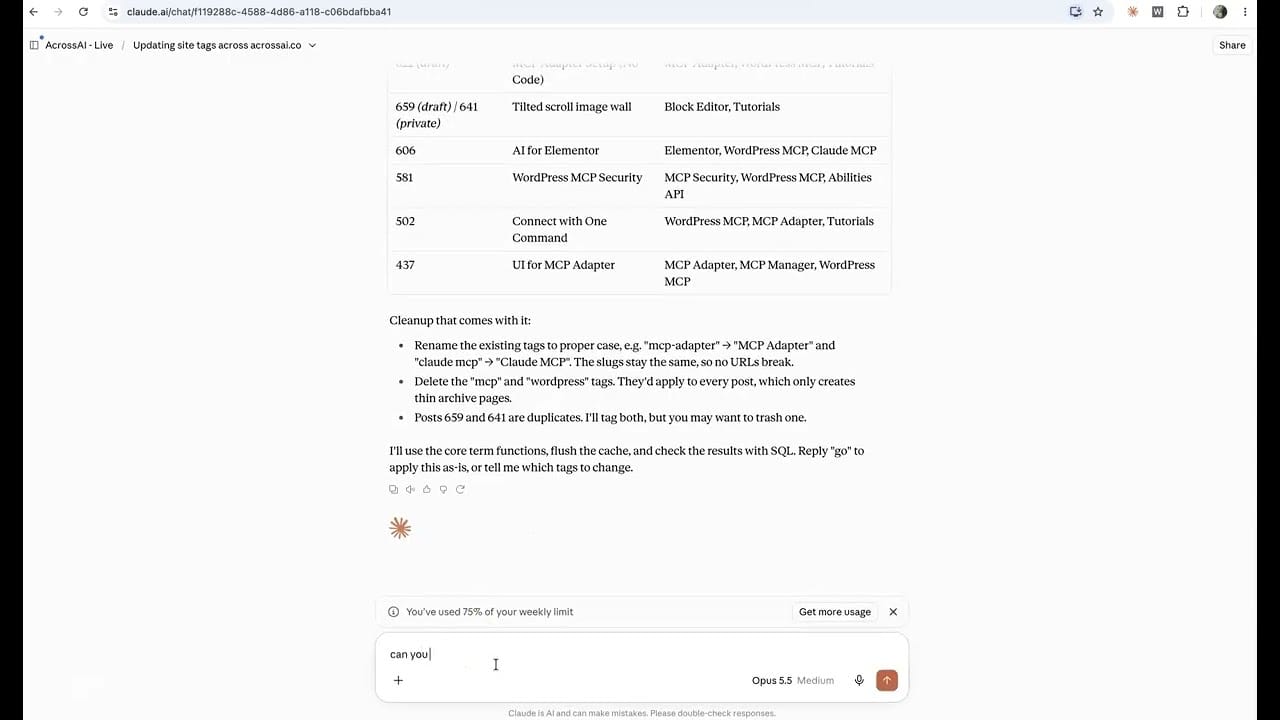
Tags are the part of WordPress everyone means to keep tidy and nobody does. Some of my posts had no tags at all. Others had tags that no longer matched what the post was about. Fixing that by hand means opening every post, reading it, and remembering which tags already exist.
So I did it in one chat instead. Claude read the posts, checked the tags already on the site, proposed a set for each post, and waited for my approval before writing anything. Here’s how that works and what you need to do it yourself.
The two plugins
Both are free on WordPress.org.
- AcrossAI Abilities Manager registers the operations your site can perform, including reading posts and managing taxonomy terms, and gives you one admin page to switch each one on or off.
- AcrossAI MCP Manager publishes those abilities to your AI assistant over the Model Context Protocol, authenticating as a real WordPress user with that user’s capabilities and nothing more.
The abilities doing the work
content/list-postsandcontent/get-postfind the posts and read what each one is actually about, along with the tags it already has.taxonomies/list-termspulls the tags that already exist on the site. This is the step that keeps things clean.taxonomies/create-termadds a new tag only when nothing existing fits.taxonomies/assign-cpt-termssaves the tags to each post. It can either append to what’s there or replace it, so you decide whether existing tags survive.
The best part isn’t the speed
Any tool can stamp tags onto posts quickly. The hard part is not ending up with WordPress, wordpress-tips and WP as three separate tags that each hold two posts.
Because Claude reads the existing tag list first, it reuses what you already have and only proposes a new tag when it can say why none of the current ones fit. You see the full plan, post by post, before anything changes. If a suggestion is off, you say so in plain words and it adjusts.
Nothing is saved until you approve it. That’s the difference between an assistant and a bulk script you run and hope for the best with.
The prompt I used
Go through my published posts and find the ones with no tags or tags that don’t fit the content. Check my existing tags first and reuse them wherever possible. Show me the proposed tags for each post and don’t save anything until I approve.
Works with whichever assistant you already use
MCP is an open standard. Claude, ChatGPT, Gemini, Cursor, Grok and other MCP-capable clients connect to the same site with no changes on the WordPress side. And because your site is the MCP server, your content goes straight from WordPress to the assistant, with no third-party relay in between.
Verify after every write
Once the tags are saved, ask Claude to read a few posts back and confirm the tags match what you approved. Then glance at Posts → Tags to check that no stray duplicates slipped in. It takes seconds and it’s your independent check that what you were told actually happened.
Get the plugins:
AcrossAI MCP Manager · AcrossAI Abilities Manager
Learn more: acrossai.co