
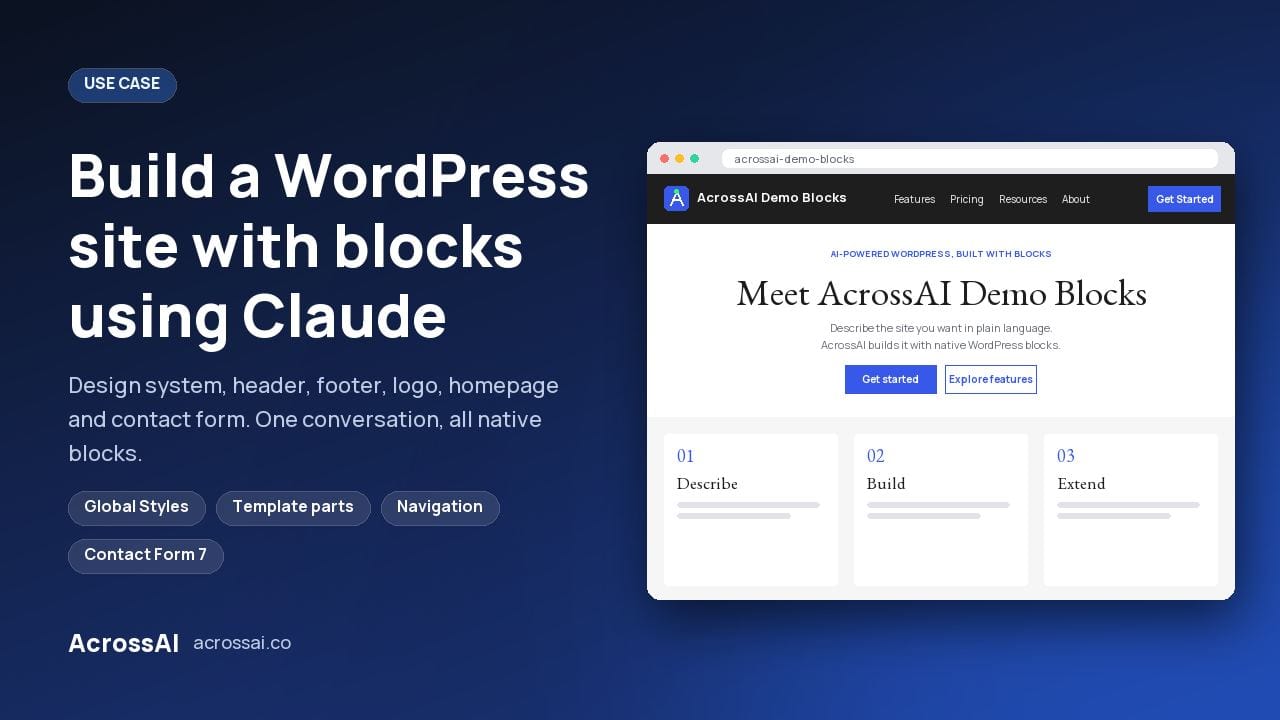
Can you build a WordPress site with blocks using Claude? Yes. I built a complete site from native blocks in one conversation. No wp-admin, no page builder and no theme files touched, and everything stays editable in the Site Editor.
AcrossAI Demo Blocks started as a fresh Twenty Twenty-Five install. Claude was connected to it over MCP (the Model Context Protocol) using the free MCP Manager plugin, so every request I typed went straight to the live site: a design system based on wordpress.org, a header and footer, pages, a logo, a homepage and a designed contact page, using just three free plugins. Watch the full build on YouTube.
1
Conversation, start to finish
14
Pages, plus 3 blog posts
5
Real navigation menus
0
Theme files edited
Three free plugins to build a WordPress site with blocks
Every plugin used in the build is free on WordPress.org. Two connect Claude to WordPress; one adds the contact form.
01
Connects Claude
AcrossAI MCP Manager
The WordPress MCP server. It connects Claude (or any MCP client) to the site, authenticating as a real WordPress user through Application Passwords.
02
Gives Claude abilities
AcrossAI Abilities Manager
Registers the operations Claude can perform: Global Styles, template parts, navigation menus, fonts, pages, media and plugins. See every ability.
03
Forms
Contact Form 7
The contact form on the homepage and contact page, styled with the site’s palette colors. See the Contact Form 7 integration.
Everything else came from WordPress itself: the Twenty Twenty-Five block theme, Global Styles, the Font Library, template parts and core blocks.
The abilities doing the work
Design
blocks/update-global-style
Save the palette, fonts, spacing scale and button styles as Global Styles, so every block on the site inherits them.
Layout
blocks/update-block-template-part
Write the header and footer as template parts stored in the database, where theme updates can’t overwrite them.
Navigation
blocks/create-navigation
Create real navigation menus: the main menu with its Resources dropdown and one menu for each footer column.
Pages · Branding
content/create-page + settings/update-site-logo
Build every page from core blocks, then set the new logo as the site logo and site icon.
What Claude built in one conversation
Design
A wordpress.org design system
A Blueberry and Charcoal palette, EB Garamond headings with Inter body text, a spacing scale and square 2px buttons, saved as Global Styles.
Header
A dark header and menu
The logo, a navigation menu with a Resources dropdown and a Get Started button, on a full-width Charcoal bar.
Footer
A four-column footer
Product, Resources, Company and Legal columns, each its own navigation menu, with social icons and a copyright bar.
Branding
An original logo
A network-style “A” in the site’s palette, set as the site logo and the site icon.
Homepage
A homepage in blocks
A serif hero, a three-step section, a dark feature band, a toolsets grid, the latest posts and a contact form.
Contact
A designed contact page
Contact cards, a styled Contact Form 7 form, office hours, an FAQ and a call to action.
The best part isn’t the speed
Building a site in one conversation is a nice headline, but it isn’t why this is worth doing. The reason is that Claude built it the way a careful developer would, so the result is something a team can maintain.
01 · Design
Asked before applying
It built the theme.json from wordpress.org’s own design tokens, showed it to me first, and only applied it after I approved.
02 · Theme
Never touched the theme
It saved the design as Global Styles and copied the header and footer into the database before editing them, so theme updates can’t overwrite anything.
03 · Colors
Used palette tokens, not hex
When I asked for global colors, it audited every page, replaced leftover hex values with palette tokens and added a missing color to the palette.
04 · Copy
Offered options
With no tagline to go on, it suggested three that fit the site name instead of picking one for me.
05 · Honesty
Said what it couldn’t check
It couldn’t load the front end, so it told me exactly what to check in the browser instead of assuming everything looked right.
The moment the screenshot didn’t match
What I saw
Every style had saved, but my screenshot still showed the theme’s default yellow, with white text I couldn’t read.
What Claude found
It recognised the theme’s default palette in the screenshot and traced the cause: WordPress quietly ignores a user Global Styles record unless it carries a specific flag, isGlobalStylesUserThemeJSON, and it wasn’t being written. It rewrote the record correctly, confirmed WordPress was reading it, removed the extra spacing between sections, and wrote the bug report so the fix goes into Abilities Manager.
A tool that just reports success would have left the site broken. This one looked at the result, not the response.
Works with whichever assistant you already use
MCP is an open standard. Claude, ChatGPT, Gemini, Cursor, Grok and other MCP-capable clients can build on the same site with no changes on the WordPress side. And because your site is the MCP server, your content goes straight from WordPress to the assistant, with no third-party relay in between.
Verify after every write
The habit that makes this trustworthy
A success message is not a verified change. After the styles issue, every change in this build was followed by a read that proved it: the saved Global Styles, the merged style guide, and the template parts themselves. Then I checked the front end in a browser. Ask your assistant to do the same, and look at the result yourself.
How to build your own WordPress site with blocks
Step 01
Install the two free plugins
Add MCP Manager and Abilities Manager from WordPress.org, on a site running a block theme.
Step 02
Connect Claude
Run the Quick Connect wizard, generate an Application Password, and paste the ready-made config into Claude. It also works with ChatGPT, Cursor, VS Code and other MCP clients.
Step 03
Start with the design system
Ask for a theme.json based on a site you like, and have Claude show it to you before applying anything.
Step 04
Build up
Move on to the header, footer, pages, logo, homepage and forms, one request at a time.
Step 05
Verify each change
Ask Claude to read back what it changed, then check the front end on desktop and mobile.
Frequently asked questions
Can Claude build a WordPress site with the block editor?
Yes. Once Claude is connected to WordPress over MCP, it can set Global Styles, write template parts, build navigation menus and create pages from core blocks. This site was built that way in one conversation.
Will a theme update overwrite what the AI built?
No. The design system is saved as Global Styles, and the header and footer as template parts in the database, not in the theme’s files. Theme updates leave them alone.
Can I edit the site myself afterwards?
Yes. Everything is core blocks, palette colors and real navigation menus, so you or anyone on your team can change it in the Site Editor without touching code.
Is it safe to let Claude manage a live WordPress site?
With MCP Manager, Claude connects as a real WordPress user through Application Passwords, so it can only do what that user is allowed to do. It uses named abilities rather than running arbitrary code, and you can revoke access at any time from your profile page.
Which AI assistants work besides Claude?
MCP is an open standard, so the same setup works with ChatGPT, Cursor, VS Code with GitHub Copilot, Gemini CLI and other MCP clients. MCP Manager includes ready-to-paste configs for each.
How much does it cost?
All three plugins used in this build are free on WordPress.org. You only need a Claude account to chat with.
Build your own block site with Claude
Install the two free plugins, connect Claude, and start with your design system. Everything in this build is free on WordPress.org.
Watch the build: Building a WordPress site with blocks using Claude · Learn more: the one-hour Claude build · the AcrossAI platform · every plugin integration