
Free on WordPress.org
This plugin is freely available on the official WordPress.org plugin directory. Install AcrossAI MCP Manager on any WordPress site — no paid license required to get started.
MCP Manager is the free, open-source MCP server for WordPress, built on the official WordPress MCP Adapter. The Adapter exposes your site’s Abilities API over the Model Context Protocol; MCP Manager adds the part the Adapter deliberately leaves out — an admin UI layer, a guided setup wizard, per-server permissions, and ready-to-paste configs for 16 AI clients. This is the user-facing side of the mcp-adapter for WordPress.
The Model Context Protocol (MCP) is rapidly becoming the standard way AI agents connect to tools and data. For WordPress sites, the MCP Adapter turns your site’s Abilities API into a clean, discoverable set of tools that any MCP-compatible client can use.
But the real power of an MCP Adapter is not only what it exposes to machines — it is how those capabilities feel to the people who rely on them. This post focuses on the user-facing side: the screens, controls, and trust signals MCP Manager puts in front of the protocol so site owners, editors, and end users can actually use it.
What MCP Manager Adds on Top of the MCP Adapter
The Adapter is a protocol layer with no admin screens of its own. Everything below is what MCP Manager puts in front of it — and every one of these ships in the free plugin on WordPress.org:
- Quick Connect wizard — a guided flow that takes you from activation to a connected AI client in under a minute, generating the Application Password in-wizard so there is no trip to the profile page. See the wizard
- Multiple MCP servers per site — create, enable, disable, and configure each one independently, with its own tools and its own rules. Docs
- 16 built-in AI-client connection guides — copy-paste-ready JSON for Claude Desktop, Claude Code, VS Code, GitHub Copilot, Codex, Cursor, Gemini CLI, Windsurf, Zed, Cline, Roo Code, Kilo Code, Amazon Q Developer, OpenCode, Antigravity, plus a Custom Client template. Docs
- Application Passwords under the hood — WordPress-native credentials, generated in one click and revocable from the user profile. Nothing is stored in the plugin’s own tables. Docs
- Per-server tool and ability curation — pick exactly which WordPress abilities each server exposes as callable tools. Docs
- Per-server access control — gate every MCP request by user, role, capability, or your own policy provider. Docs
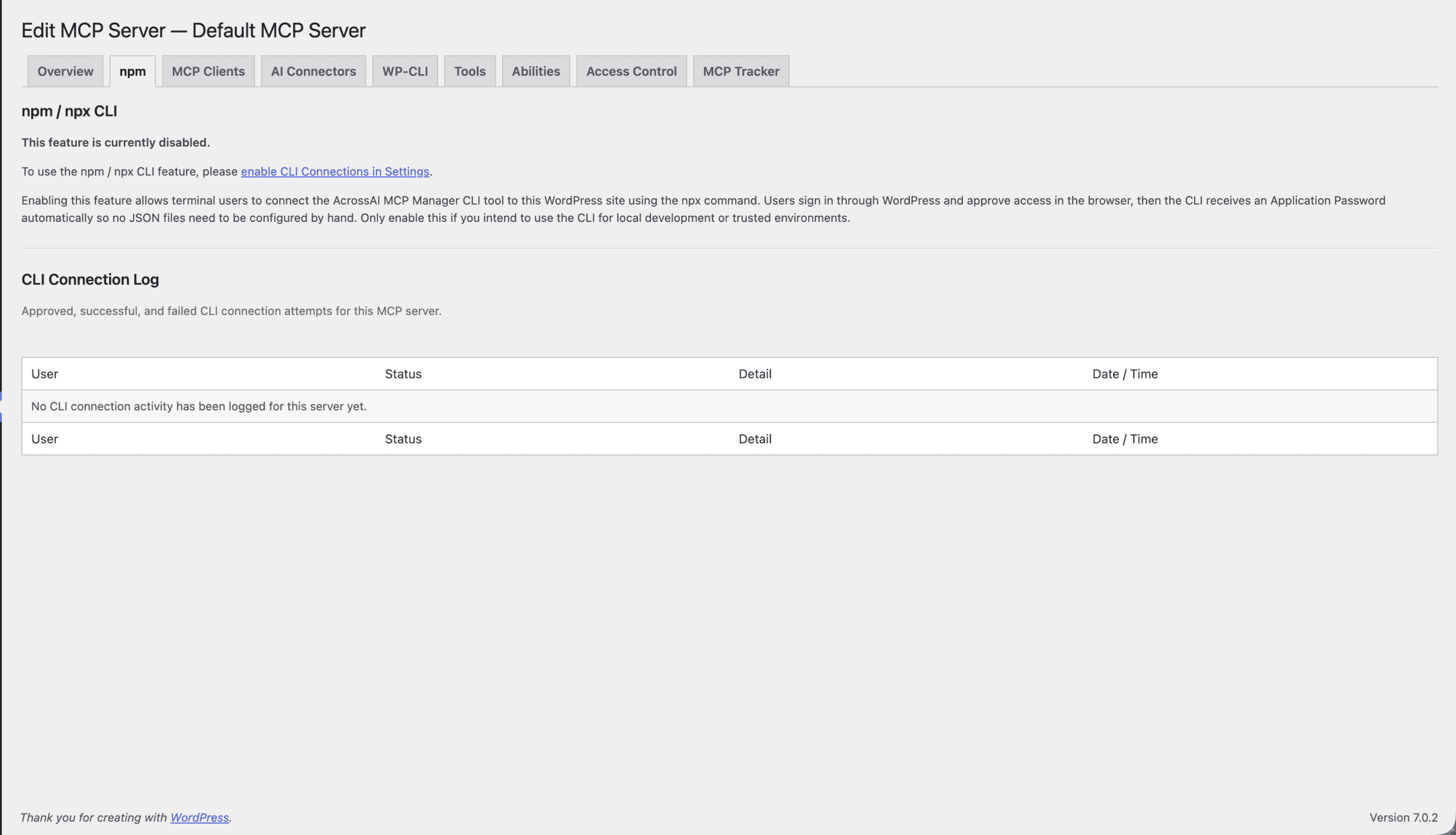
- CLI browser-approval flow — terminal users connect with one command and approve in a browser tab; no password ever gets copied. Docs
- WP-CLI (STDIO) transport — local clients connect through a WP-CLI subprocess with no network credential transmission. Docs
- Frontend embeds — a shortcode and a block so you can show your own users how to connect their AI clients, from your own site. Docs
What “User Facing” Means for an MCP Adapter
An MCP Adapter sits between AI hosts (Claude, ChatGPT, Cursor, custom agents) and WordPress. From the AI’s perspective it is a list of tools with schemas. From a human perspective it is a gateway that can:
- Create, update, and organize content
- Manage plugins, themes, and media
- Run database-safe operations and diagnostics
- Surface site health, SEO, and internal-linking insights
User-facing design therefore covers three layers:
- Operator experience — site admins who connect clients and decide what is allowed
- Editor experience — people who use AI inside the writing and publishing workflow
- Visitor experience — the end result of AI-assisted content and site changes
Key User-Facing Principles — and How MCP Manager Implements Them
1. Setup that finishes before you lose patience
The biggest user-facing failure of a raw adapter is the config file. The Quick Connect wizard replaces it: activate the plugin, click through a short guided flow, generate the Application Password inside the wizard, copy the ready-made JSON, and paste it into your client. Prefer to do it by hand? The manual six-step path under AcrossAI → MCP is exactly the same underneath.
2. Clear discovery and opt-in exposure
Not every ability should be reachable by every AI client. Abilities become callable only when you add them to a server on the Abilities and Tools tabs, and permission checks still run against the authenticated WordPress user. Because servers are independent, you can run a read-only research server and a full editing server on the same site.
3. Human-readable labels and descriptions
Every ability carries a label and description that both the AI and the human operator can understand. When a client lists tools, operators see names such as “Create Post”, “List Plugins”, or “Audit Database Health” instead of opaque function names. Good naming reduces mistakes and builds confidence.
4. Safe defaults you do not have to remember
A server with no access-control rule configured is administrator-only by default — it does not fall open to every logged-in user. On top of that, destructive or high-impact abilities (deleting posts, converting table engines, flushing caches, editing core config) require explicit confirmation or dry-run mode, and prefer reversible operations such as trash over permanent delete.
5. Transparent authentication and identity
Connections authenticate as real WordPress users through native Application Passwords — generated by WordPress, tied to a user, and revocable from the profile page at any time. Permissions are the capabilities that user already has in the admin. There is no parallel “super AI” role, no proxy service in the middle, and no vendor lock-in.
6. A connection style for every client
Desktop apps use the MCP Client (npx bridge) JSON config. Terminal users use CLI connections with browser approval. Local and CI environments use the WP-CLI (STDIO) transport, which never sends credentials over the network. If you want a one-click hosted-OAuth flow for Claude, ChatGPT, Grok, Gemini, or Cursor with no config file at all, that lives in the paid AcrossAI Pro add-on.
7. Feedback that fits the conversation
When an ability succeeds or fails, the response includes structured success flags, IDs, messages, and (where useful) byte counts or truncated content indicators. Hosts can surface these results in the chat UI so the human sees exactly what the AI did on their behalf.
Practical User-Facing Workflows
MCP Manager handles the connection; the abilities themselves come from WordPress core and from add-ons such as AcrossAI Abilities Manager. Once a server is curated, these are the everyday scenarios operators run:
- Content drafting — An editor asks the AI to draft a post. The server creates a draft via
content/create-post, returns the post ID, and the editor reviews and publishes in the familiar WordPress editor. - Site health checks — An admin asks “how healthy is my database?” Bounded audit abilities return concise summaries instead of raw SQL dumps.
- Plugin management — Searching, installing, or updating plugins happens through named abilities with clear status feedback, so the operator never loses track of what changed.
- SEO and internal linking — Rank Math and content-search abilities let the AI suggest improvements while still requiring human approval before changes are applied.
- Team access — A second MCP server, scoped to the Editor role with a content-only ability set, lets writers use AI without exposing plugin or database tools.
Why User-Facing Design Matters
MCP makes tools interoperable. A well-designed adapter makes those tools trustworthy. When operators can see what is exposed, understand the labels, rely on permission boundaries, and receive clear feedback, they are far more likely to keep the adapter enabled and to let AI agents help with real work.
The keyword for success is not just “MCP Adapter” — it is User facing for MCP Adapter: the everyday experience of connecting, authorizing, reviewing, and benefiting from AI actions on a WordPress site.
Getting Started with MCP Manager
MCP Manager needs WordPress 7.0 or higher and PHP 8.1 or higher. Application Passwords have shipped with WordPress core since 5.6, so there is nothing else to install.
- Install and activate MCP Manager from WordPress.org
- Run Quick Connect when it opens on activation, or reach it any time from the admin-bar chip
- Pick your AI client tab, generate an Application Password, and paste the ready-made JSON into your client
- Set the Access Control rule for that server — a rules-less server stays administrator-only until you do
- Curate the server’s abilities, starting with read-only or draft-creating ones
- Use dry-run and confirmation flags for anything that mutates data, and check the returned IDs and messages after each action
That simple loop turns a powerful protocol into a user-facing product people can trust.
Ready to make your WordPress site AI-ready with clear, safe, user-facing controls? Install MCP Manager free, run Quick Connect, and start with a single draft post.