
MCP Manager 0.3.0 doubles the built-in client registry from 8 to 16, and Cursor joins as a fifth one-click connector. If you have been connecting Windsurf, Zed, Cline or any of the other newly-supported clients by hand-writing JSON, you do not have to any more — update and the config is generated for you.
Table of Contents
What we supported before, and what we support now
Until 0.3.0, MCP Manager shipped ready-made configuration for eight clients. That covered the obvious ones — Claude, VS Code, Copilot, Cursor — but left a growing list of MCP-capable editors and agents to the Custom option, which means reading your client’s docs and writing the JSON yourself.
| Before 0.3.0 (8) | Added in 0.3.0 (8) |
|---|---|
| Claude Desktop | Windsurf |
| Claude Code | Zed |
| VS Code | Cline |
| GitHub Copilot | Roo Code |
| Codex | Kilo Code |
| Cursor | Amazon Q Developer |
| Gemini CLI | OpenCode |
| Custom | Antigravity |
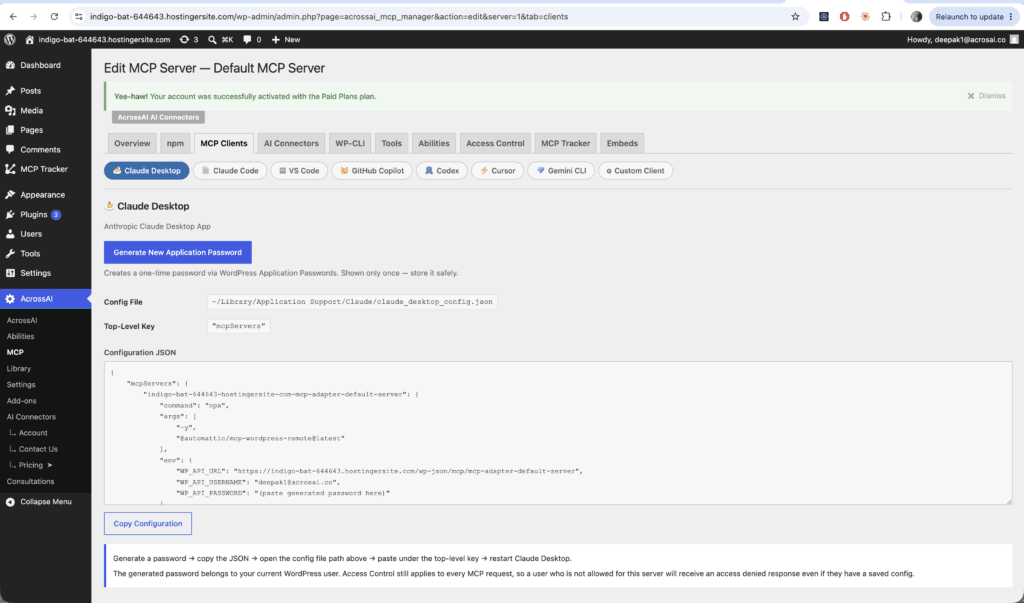
Sixteen entries in total. Every one of them gets the same treatment on the MCP Clients tab: a one-click Application Password shown once, the exact config file path and top-level key for that client, and a copy-paste JSON block already filled in with your site’s endpoint.
The eight new clients
These are the MCP-capable tools people were most often asking us about, and they split roughly into editors and coding agents.
- Windsurf — Codeium’s agentic editor.
- Zed — the high-performance collaborative editor.
- Cline — the autonomous coding agent that runs inside VS Code.
- Roo Code — the multi-mode agent forked from Cline.
- Kilo Code — another agent in the same family, with its own config shape.
- Amazon Q Developer — AWS’s assistant, for teams already inside that ecosystem.
- OpenCode — the open-source terminal coding agent.
- Antigravity — Google’s agent-first development environment.
Two of them do not use the standard config shape
Most MCP clients accept the same broad structure — a top-level key, then command, args and env. Two of the new ones do not, which is exactly the kind of detail that costs an hour when you are writing the file by hand.
Zed uses a context_servers top-level key and requires source: "custom" plus enabled: true before the standard fields. OpenCode uses an mcp top-level key with type: "local", takes command as a JSON array rather than a string, and puts environment variables under environment instead of env.
Both are handled correctly by the generated config. You do not need to know any of the above — it is only worth stating so you can see why “just use Custom” was not a real answer for these two.
Cursor joins the one-click connectors
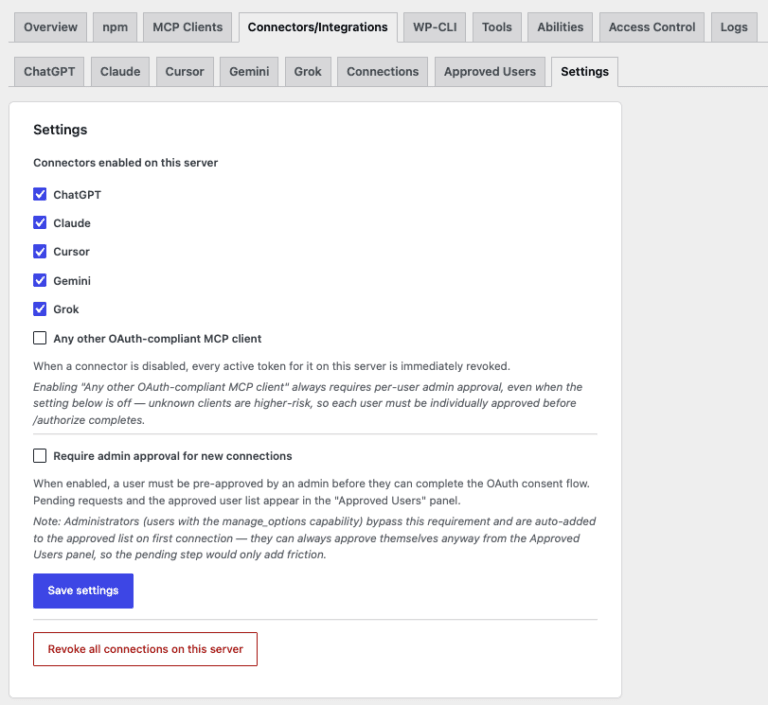
Cursor was already in the free client list — you could connect it with an Application Password and a config file. What is new is the hosted OAuth connector, which makes Cursor the fifth profile alongside Claude, ChatGPT, Gemini and Grok.
The practical difference: Cursor’s default path is Dynamic Client Registration. Paste only your MCP URL into ~/.cursor/mcp.json (or a project-local .cursor/mcp.json) and Cursor registers itself — no client ID, no secret, no credential copying. Approve the consent screen on your own site and you are connected.
Because Cursor is now a recognised profile rather than an unclassified OAuth client, it also gets its own consent-screen branding, its own Settings checkbox, and a real name in the Connections panel instead of landing in the “Other (OAuth)” bucket — which matters when you are deciding what to revoke.

If a guide tells you to whitelist cursor://, it is out of date
Until around July 2026, Cursor’s desktop IDE used a private-use URL scheme (cursor://anysphere.cursor-mcp/oauth/callback) for its OAuth callback. Cursor has since moved to loopback. Cursor now publishes two fixed callbacks, both of which the profile already whitelists:
https://www.cursor.com/agents/mcp/oauth/callback— Cursor Web and Cursor Agentshttp://localhost:8787/callback— the desktop IDE and CLI
So you do not need to enable the acrossai_pro_native_app_redirect_schemes filter for Cursor. Any third-party guide still telling you to whitelist cursor:// is stale.
One gotcha worth knowing
Cursor’s desktop sign-in listens on a hard-coded port 8787. If another process on your machine is already holding that port, the OAuth callback lands in the wrong process and authentication fails with no useful error message. If Cursor connects everywhere except your laptop, check 8787 first.
Every way to connect — all 16 clients, 5 connectors, and WP-CLI
Worth saying plainly, because the release notes make it sound narrower than it is: MCP Manager supports every client on that list through all of its transports. The sixteen clients are not limited to the copy-paste config route — the npm browser-approval flow and the WP-CLI STDIO transport serve the same sixteen. Pick whichever suits where your client runs.
| Route | Covers | Cost |
|---|---|---|
| MCP Clients (npx bridge) | All 16: Claude Desktop, Claude Code, VS Code, GitHub Copilot, Codex, Cursor, Gemini CLI, Windsurf, Zed, Cline, Roo Code, Kilo Code, Amazon Q Developer, OpenCode, Antigravity, Custom | Free |
| npm / npx (browser approval) | Same 16 — one command, approve in the browser, config written for you | Free |
| WP-CLI (STDIO transport) | Local installs — the client launches WP-CLI as a subprocess, so no credentials cross the network | Free |
| Connectors/Integrations (hosted OAuth) | Claude, ChatGPT, Cursor, Gemini, Grok — paste one URL, approve the consent screen | Free |
Quick Setup covers all sixteen too
0.3.0 also shipped the Quick Setup wizard — one guided flow instead of eleven tabs, which skips whatever does not apply and generates the Application Password inline. Its client step reaches full parity with the MCP Clients tab, so every one of the sixteen clients is reachable from the wizard as well. More on that in MCP Adapter vs MCP Manager.
How to update
Both updates are ordinary WordPress plugin updates — Dashboard → Updates, or the Plugins screen.
- Update MCP Manager to 0.3.0 for the eight new clients and Quick Setup.
- The Cursor connector arrives with that same update — there is nothing else to install.
- Open any MCP server, go to MCP Clients, and pick your client from the expanded list.
Nothing breaks on the way through. Existing connections keep working, no re-authorisation is required, and there are no database changes in either release. If you deploy from a source checkout rather than through the plugin updater, run composer install --no-dev -o after updating — 0.9.2 adds a class file and the autoloader classmap needs regenerating.
Frequently asked questions
Which MCP clients does MCP Manager support?
As of 0.3.0, sixteen: Claude Desktop, Claude Code, VS Code, GitHub Copilot, Codex, Cursor, Gemini CLI, Windsurf, Zed, Cline, Roo Code, Kilo Code, Amazon Q Developer, OpenCode, Antigravity, and a Custom option for anything else that speaks MCP.
Do I need anything extra to connect Cursor?
No. Cursor has been in the free client list for a while — connect it with an Application Password and a config file at no cost. MCP Manager also includes the one-click hosted OAuth connector, where Cursor registers itself from the MCP URL alone and you approve a consent screen instead of copying credentials.
Why does Cursor fail to authenticate on my machine only?
Most likely port 8787. Cursor’s desktop sign-in listens on that hard-coded port; if another local process holds it, the OAuth callback is delivered to the wrong process and the attempt fails without a clear error.
Can I connect these clients with WP-CLI instead of a config file?
Yes. The WP-CLI STDIO transport is available for all sixteen clients. Instead of calling the network endpoint, the client launches WP-CLI as a subprocess, so no credentials travel over the network at all — which makes it the right choice for local installs and CI. The npm browser-approval flow also covers the same sixteen.
Do I have to reconnect my existing clients after updating?
No. Neither release changes the database schema or the token storage. Existing connections continue to authenticate and no re-authorisation is required.
My client is not on the list. Can I still connect it?
Yes — use the Custom option, which gives you the endpoint and a generic config to adapt. Adding a client properly is a filter callback, so if there is one you would like shipped by default, tell us and it can go into the registry.
Next steps
- MCP Manager 0.3.0 — free on WordPress.org
- AI Connectors — one-click connectors for Claude, ChatGPT, Cursor, Gemini and Grok
- Connecting an AI client — per-client setup docs
- MCP Adapter vs MCP Manager — what the plugin adds over the official Adapter