
Want your team or members to connect their own AI clients without visiting wp-admin? A server can publish its connection guides on the front end, through the [acrossai_mcp_embed] shortcode or the MCP Connection Guide block.
Requires AcrossAI Pro. The front-end embed moved to Pro, which is also where the block lives. AcrossAI MCP Manager still needs to be installed and active — Pro reads your servers and their connection methods from it. If you had embeds configured before the move, your settings carry over untouched.
How to switch it on
There are two switches: one for the whole site, one per server. Both have to be on.
- Go to AcrossAI → Settings → Pro and turn on Enable Frontend Embeds. This only opens the door — it publishes nothing on its own.
- Open the server you want to publish, and its Embeds tab.
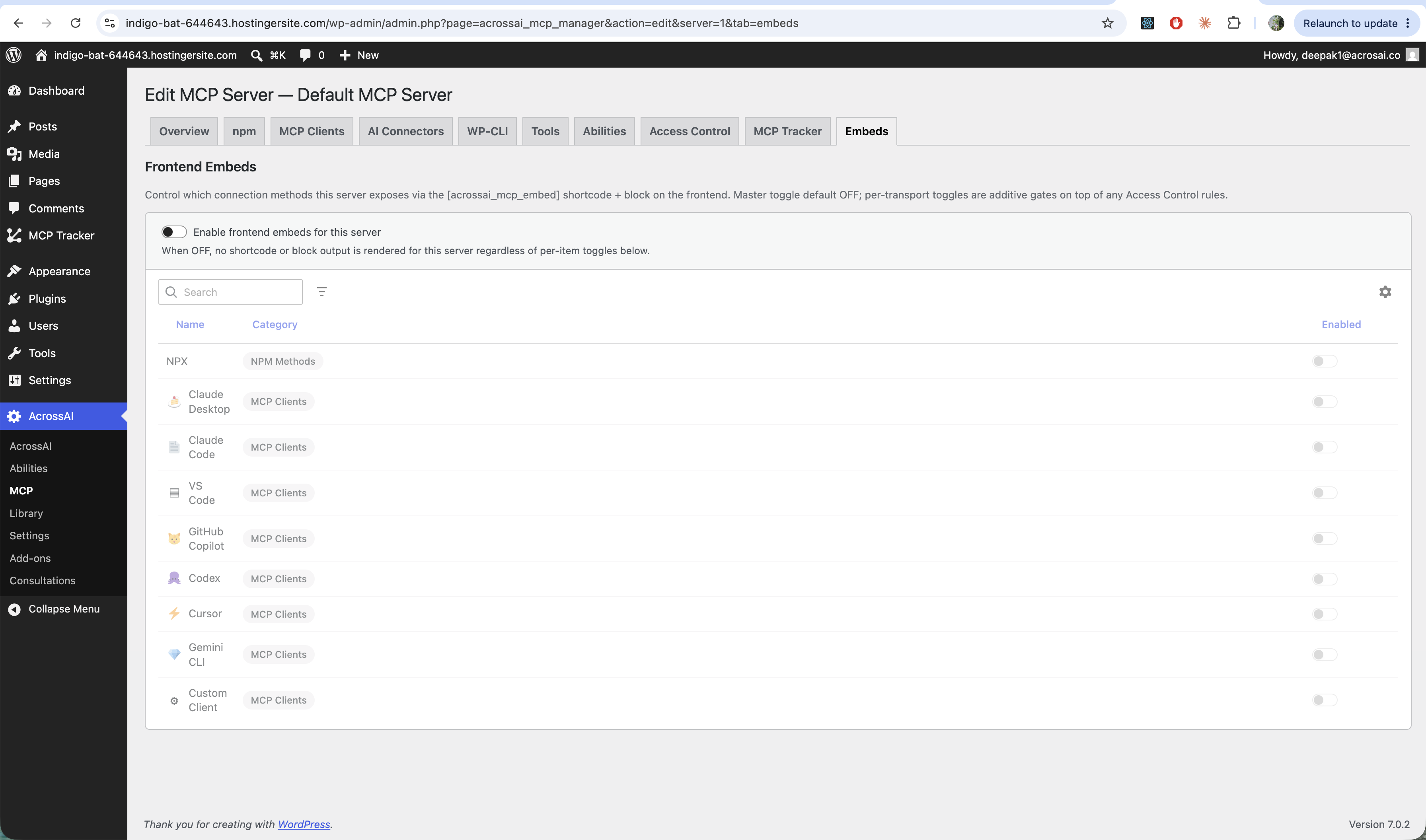
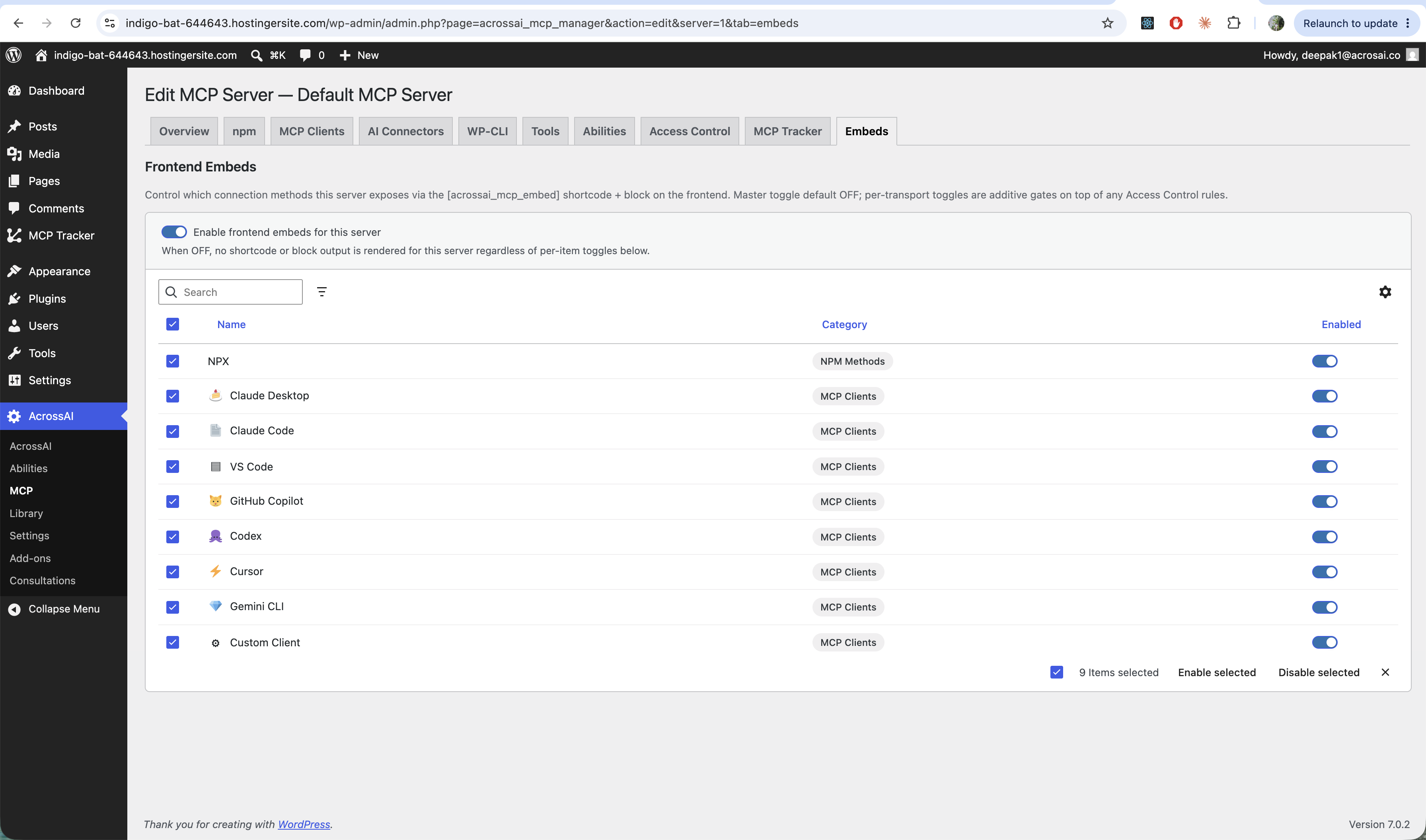
- Turn on Enable frontend embeds for this server. While it’s off, the shortcode and block render nothing for this server.
- Then enable the individual connection methods you want to show — NPX and each client (Claude Desktop, VS Code, and so on). Use the checkboxes with Enable selected / Disable selected to do it in bulk.
Putting it on a page
Add the block from the inserter, or use the shortcode. Both need a server and a category; the shortcode takes a third, optional attribute to show a single method rather than the whole category.
[acrossai_mcp_embed server="my-server" category="client"]
[acrossai_mcp_embed server="my-server" category="npm"]
[acrossai_mcp_embed server="my-server" category="client" slug="claude-desktop"]
Each signed-in visitor sees only the connection details appropriate to them. The per-method toggles are additional gates layered on top of your Access Control rules — they can only ever show less, never more. Someone who cannot reach a server sees nothing at all, not an error.
Great for: membership sites, agencies and teams — give people a self-serve page to connect their own editor or assistant.