
The most common thing you’ll do in AcrossAI Abilities Manager is decide whether an ability is allowed or blocked. Here’s how to change a single ability; to change many at once, see Bulk actions.
Change one ability
- On the Abilities screen, find the ability you want and click Edit.
- Scroll to the Site Permission section.
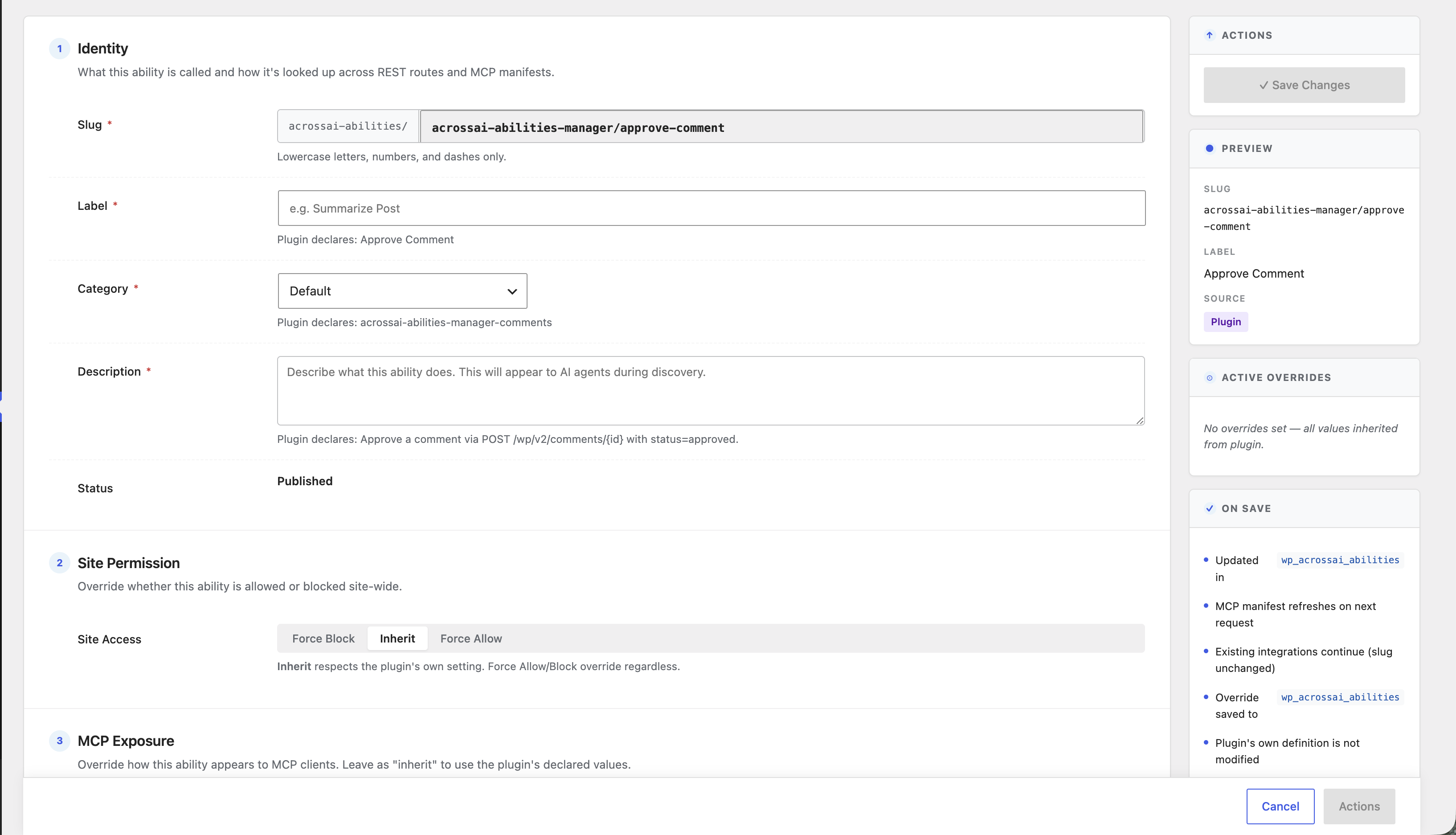
Under Site Access, choose one of three buttons:
- Force Allow — always let this ability run, whatever its default.
- Inherit — keep the ability’s own built-in setting (the normal choice).
- Force Block — switch this ability off across your whole site.
Finally, click Save Changes. The change takes effect straight away.
Changing many at once? The Bulk actions guide shows how to allow, block, or reset dozens of abilities in a single step. And remember: Inherit simply removes your override and restores the ability’s original default.