
The Settings page (under AcrossAI → Settings) holds a couple of simple preferences.
Display Settings
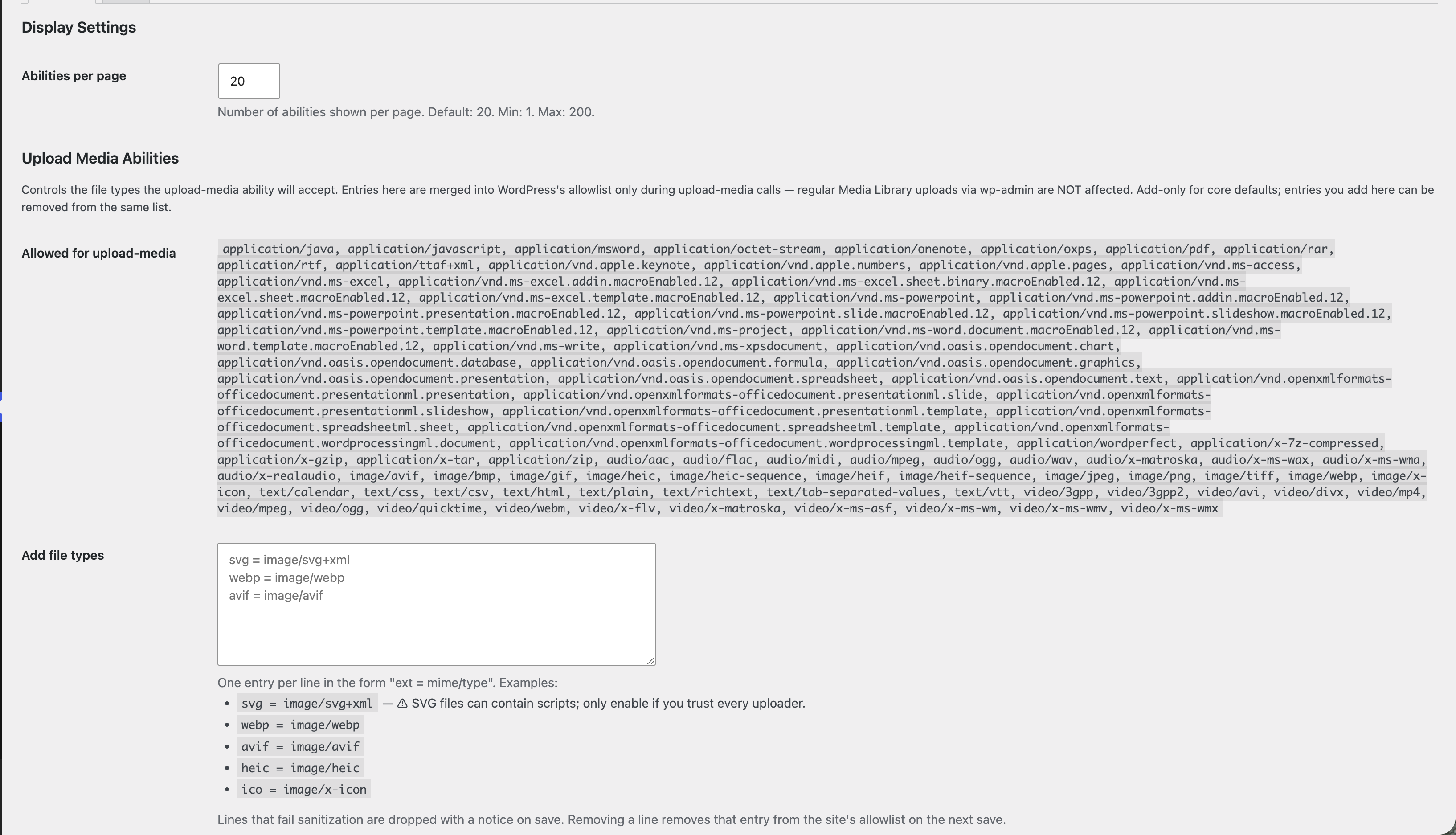
Abilities per page controls how many rows appear on the Abilities table before it splits into pages. The default is 20; you can set anything from 1 to 200. Larger sites may prefer a bigger number so there’s less paging.
Upload Media Abilities
This controls which file types the AI upload-media ability is allowed to accept. The list under Allowed for upload-media shows every type currently permitted.
To allow an extra type, add a line to the Add file types box in the form ext = mime/type — for example webp = image/webp. Remove a line to take that type back out.
Two things to know: this list only affects the AI upload-media ability — your normal Media Library uploads are never changed. And SVG files can contain scripts, so only allow them if you trust everyone who can upload.