
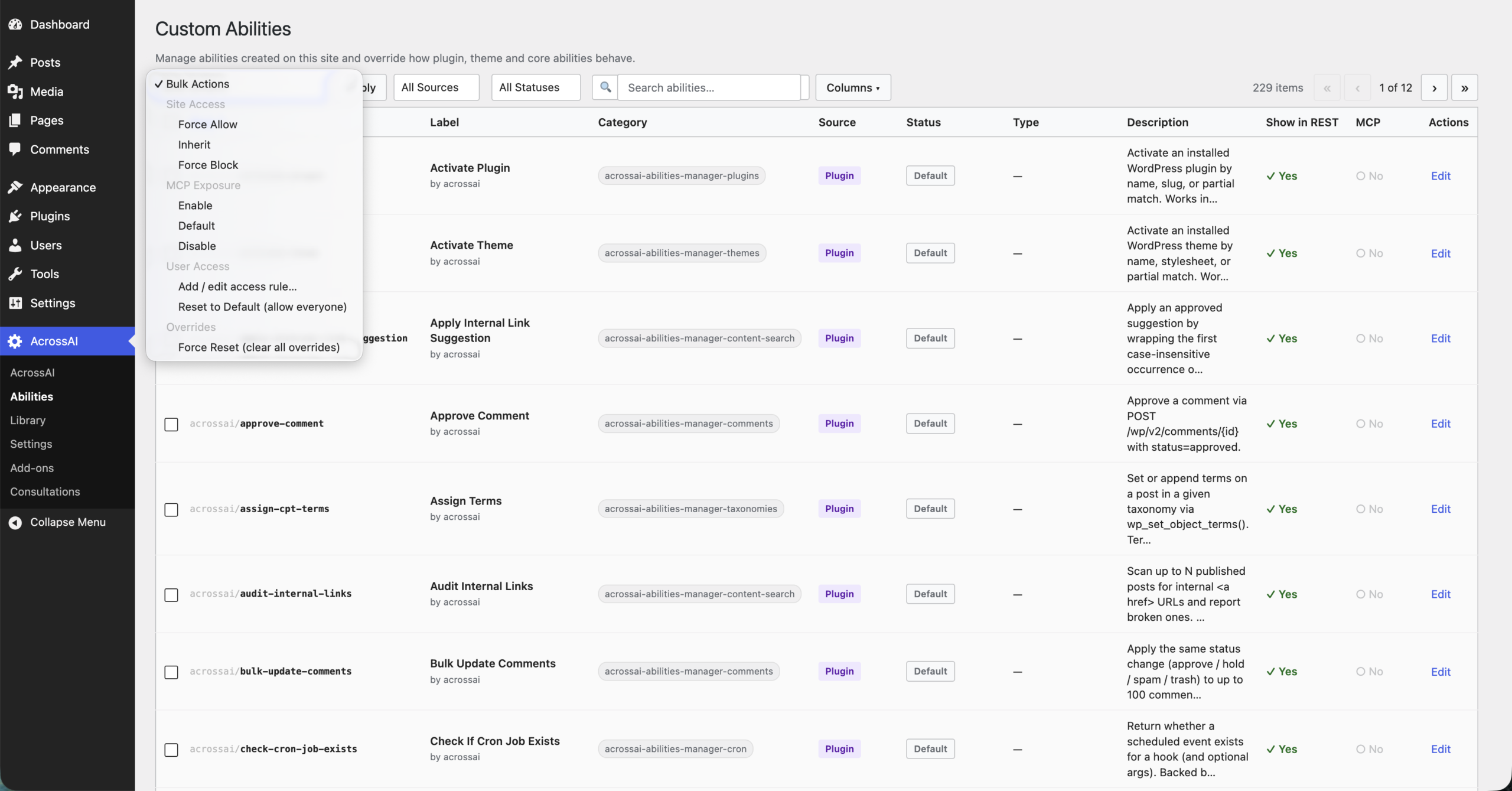
Editing abilities one at a time is fine for a tweak or two — but when you want to change many at once, the Bulk Actions toolbar at the top of the Abilities screen applies the same change to every ability you select.
How to use bulk actions
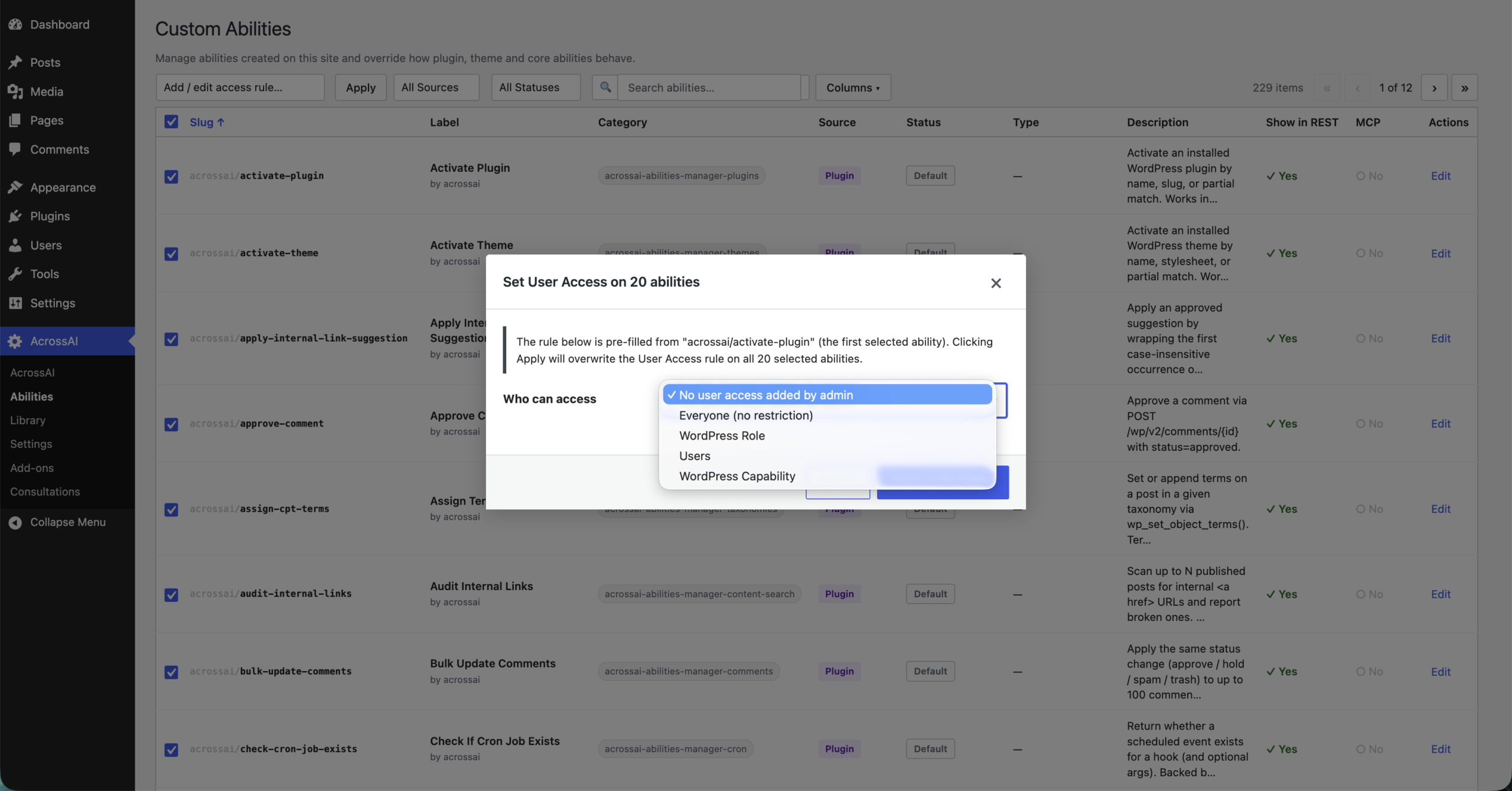
- On the Abilities screen, tick the checkbox at the start of each row you want to change. The checkbox in the header selects every ability on the current page.
- Open the Bulk Actions dropdown at the top left and choose what to do.
- Click Apply.
What you can change
Site Access
The same allow / block control as a single ability’s Site Permission:
- Force Allow — always let the selected abilities run.
- Inherit — remove your override and use each ability’s own default.
- Force Block — switch the selected abilities off across your whole site.
MCP Exposure
Controls whether the selected abilities are offered to AI clients over MCP:
- Enable / Disable — force them on or off for MCP clients.
- Default — remove your override and use each ability’s own setting.
User Access
- Add / edit access rule… — opens a dialog where you choose who may use the abilities (for example, only the Editor role), then applies that rule to everything selected.
- Reset to Default (allow everyone) — removes any who-can-use restriction from the selected abilities.
Force Reset
Force Reset (clear all overrides) wipes every override you’ve set on the selected abilities — Site Access, MCP, annotations and access rules — returning them completely to their defaults.
Good to know: Nothing happens if no abilities are ticked. Switching things off (Force Block, Disable) asks you to confirm first, showing the action and how many abilities it affects. And because Inherit / Default / Reset only remove overrides, your original abilities are never changed.