
Now that the plugin is active, here is a gentle five-minute tour so you feel at home.
1. Open the Abilities screen
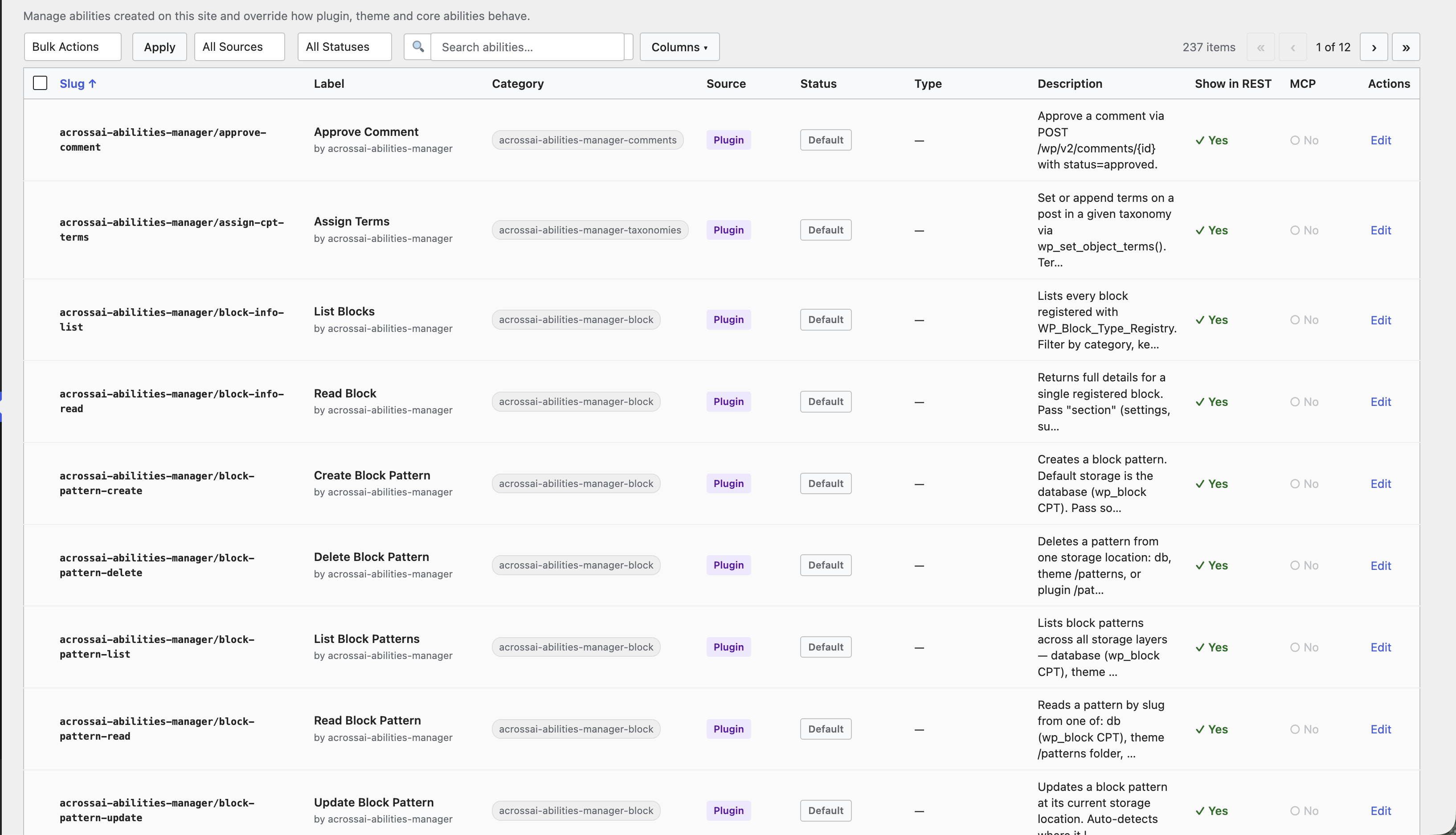
In the admin menu, click AcrossAI → Abilities. You’ll see a table listing every ability registered on your site. Each row is one thing an AI could do.
2. Read a row
Every row shows the ability’s name, a short description of what it does, where it came from (Source), and its current Status. Don’t worry about the more technical columns yet.
3. Search for something
Type a word like post, user or media into the Search abilities box. The list narrows instantly so you can find what you care about.
4. Try turning one off
Found an ability you’d rather AI could not use? You can block it in a couple of clicks. The next guide, Allow or disallow an ability, walks through exactly how.
Good to know: Nothing on this screen changes your posts, pages or media. You are only setting permissions — what AI is allowed to do.